
Capture and standardize SSN, EIN, and other data with custom string formatting



Our newest enhancement to forms in Intellistack Streamline helps you consistently collect data with preset display formats.
For example, an HR team onboards new hires through an intake workflow in Streamline. One of the early steps collects personal information, including a Social Security Number. Without built-in formatting, each respondent enters their SSN a different way: some with dashes, some without, some with spaces. The data lands in the system inconsistently, which means someone downstream has to clean it up before it can flow into payroll.
Streamline now handles that at the point of entry. Custom Field Formatting lets form builders apply preset display formats - like SSN or EIN - directly to string fields in the Data Capture step. The field enforces the correct pattern as the respondent types, so data is consistent before it ever leaves the form.
Format once, carry through the workflow
When a form builder applies a format to a field, that format stays with the data. The value entered in the formatted field carries through to downstream steps, exports, and integrations in the same consistent structure.
For the HR team example, that means the SSN collected in the intake form arrives in the exact same format when it reaches a document generation step, a data push to payroll, or an export to CSV. No transformation logic. No cleanup step. The format is set once and holds.
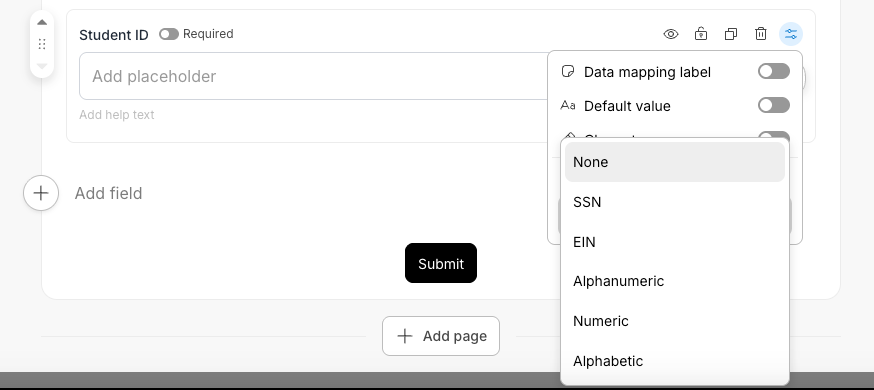
SSN fields use the standard XXX-XX-XXXX pattern. EIN fields use XX-XXXXXXX. Both mask the value on blur - when the respondent clicks or tabs away from the field, the displayed value is replaced with a masked version. The actual value is still stored and passed downstream. It is only re-masked if it reaches another form with a matching SSN or EIN formatted field.

Beyond SSN and EIN - basic string restrictions
Custom Field Formatting also introduces character-type restrictions for string fields that don't follow a fixed pattern but still need controlled input.
- Alphanumeric - restricts input to letters and numbers only. No special characters like dashes, ampersands, or parentheses. A logistics company collecting container tracking codes - like MSCU7654321 - can pair alphanumeric formatting with a character length limit to ensure each entry matches the expected structure. The field blocks stray characters on input instead of catching them after submission.
- Numeric - restricts input to numbers only but on a string field, which means leading zeros are preserved. This is distinct from the number field type, which strips leading zeros and supports calculations. Consider a university registrar collecting student IDs that follow a fixed seven-digit format starting with zero - like 0041823. A standard number field would drop that leading zero and store 41823, breaking the match against the student records system. A string field with numeric formatting and a character length of seven keeps the value intact. The same applies to policy numbers, facility codes, or any identifier where the leading zero is part of the value and math is irrelevant.
- Alphabetic - restricts input to letters only. A compliance team collecting country codes or state abbreviations on an internal review form can use alphabetic formatting to ensure the entry is strictly letters - no accidental digits or symbols that would fail a downstream lookup.
Try it today
Custom Field Formatting in the Data Capture step is available to all Streamline users who can edit Projects. Open any Data Capture step in your workflow builder and select a string field to configure its format.