

Collecting Date, Time, or Both? Customize your forms with new controls


You need to collect employee availability. Your form forces them to pick a specific date and time—even though they work the same hours every Tuesday. You need a patient's date of birth. They have to click backward through 30 years on a calendar picker just to enter "1985."
These aren't edge cases, they're daily frustrations that happen because most form builders make you choose between collecting a full date-and-time or nothing at all.
That's why we're excited to introduce dedicated Date, Time, and Date/Time fields in the (new) Form step in Intellistack Streamline, so you can collect exactly what you need, the way people actually think about it.
These new field types give you more control over how you collect temporal data, with built-in validation and formatting options that make it easier for both form builders and form users.
Three field types, endless possibilities
Date fields: when only the day matters
The problem: You're running a summer volunteer program from June 1st to August 31st. Your old form let people submit any date—including dates in April or October when your program isn't even running. Now you're manually filtering invalid responses or reaching back out to volunteers and confirming their preferred dates individually.
What you can do now: Date fields let you set a valid date range. Dates outside your window appear greyed out in the calendar picker—users can't select them. No more invalid submissions. No more manual cleanup.
Perfect for:
- Patient intake forms collecting dates of birth
- HR forms requesting employee start dates
- Alumni surveys gathering graduation dates
- Any scenario where time of day is irrelevant
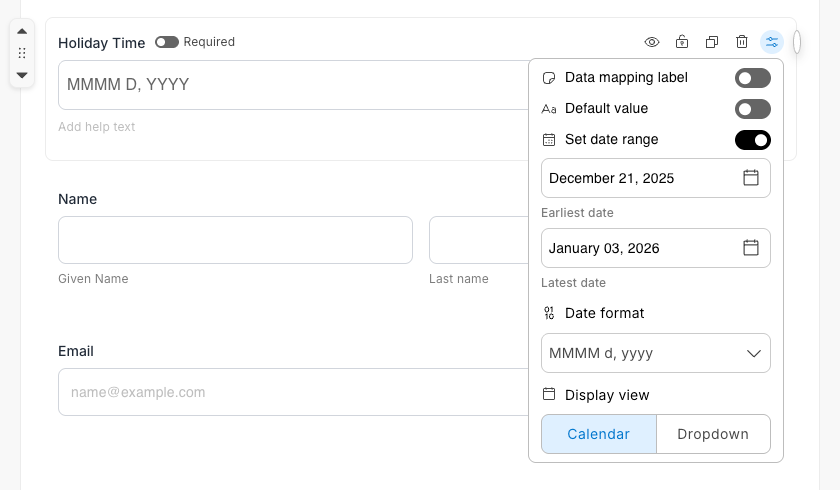
You also have full control over the date format. Whether your audience expects MM/DD/YYYY, DD/MM/YYYY, or another format entirely, you can configure the display to match their expectations.
Time fields: precision without the calendar
The problem: You're collecting employee availability. Everyone works the same hours each Tuesday and Thursday—9:00 AM to 5:00 PM. But your form makes them pick a specific date and time, like "Tuesday, June 4th at 9:00 AM." You don't need June 4th. You just need "9:00 AM to 5:00 PM."
What you can do now: Time fields collect hours without requiring a date. Staff enter their typical schedule—9:00 AM to 5:00 PM—and you're done. No confusion. No unnecessary calendar picking.
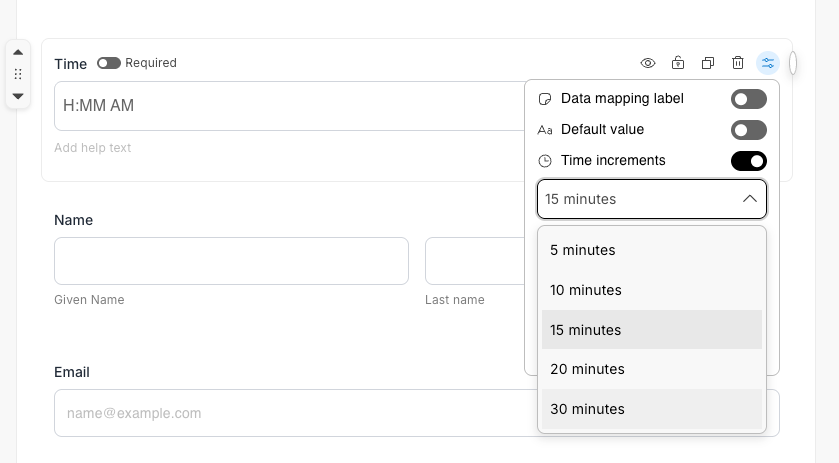
Control the precision: Scheduling conference rooms in 30-minute blocks? Set your time increment to 30 minutes. Users can't request 2:17 PM when your system only supports 2:00 or 2:30. Need minute-by-minute precision for medication logging? That works too.
Perfect for:
- Collecting weekly availability windows
- Standard business hours or shift times
- Operating hours for locations
- Any scenario where the day doesn't matter
Date/Time fields: cComplete Context When You Need Both
The problem: You're scheduling patient appointments. If you use a Date field, you know they want March 15th—but not whether they prefer morning or afternoon. If you use two separate fields (one for date, one for time), you have to map them together in your system. Neither option is clean.
What you can do now: Date/Time fields capture everything in one step. March 15th at 10:30 AM. One field, one clean value that maps directly to a datetime field in your destination system.
You get all the controls:
- Set date ranges to prevent bookings outside your availability
- Configure time increments to match your scheduling blocks
- Choose formats that make sense for your audience
- Keep your data clean—no manual combining of separate date and time values
Perfect for:
- Medical appointment scheduling
- Event ticket bookings with specific time slots
- Delivery coordination windows
- Any scenario where date AND time both matter
Flexibility in how users interact
Calendar pickers or dropdowns? You choose.
Most of the time, calendar pickers work great—they're visual, intuitive, and prevent common input errors. But not always.
If someone is entering their date of birth, they might find it faster to select "July" from a month dropdown and "1985" from a year dropdown rather than clicking backwards through decades on a calendar.
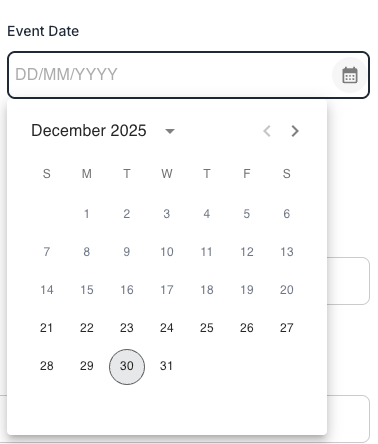
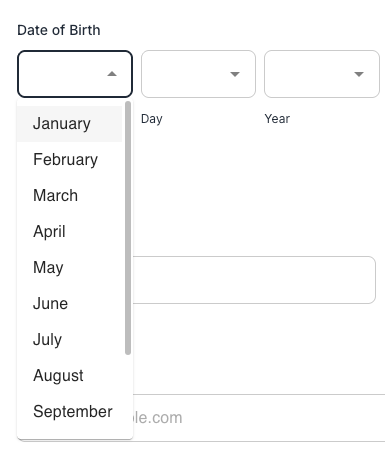
You choose the display mode that works best for your specific use case.
Start building better forms today
The new Date, Time, and Date/Time fields are available now in the (new) Form step for all Intellistack Streamline customers. Next time you need to collect temporal data, try out these new field types and see how much easier they make both form building and form filling.