


Give every session useful context
With the new Session Identifier feature in Intellistack Streamline, you can tag one or more fields from your workflow, such as an email address or a name, as a recognizable label that appears next to each session. When a session needs support, debugging, or follow-up, you can find the right person without cross-referencing records elsewhere.
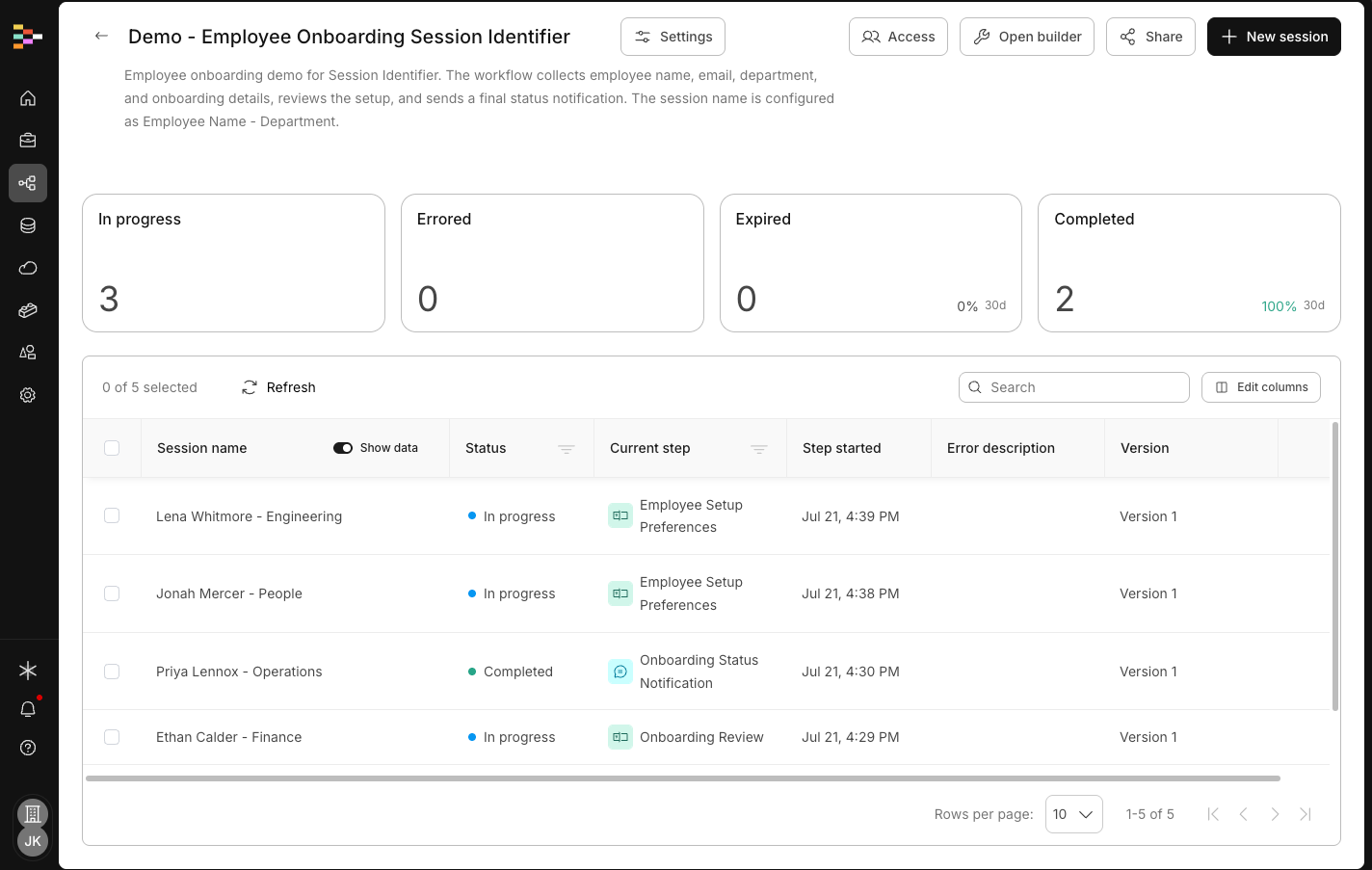
Let’s use the example of an employee onboarding workflow to understand how the new Session Identifier works. An employee onboarding team can now recognize each workflow session by the employee data that matters to them while keeping that data protected by default. Instead of relying only on a system-generated ID, the team can use a session name built from fields such as employee name, email address, and department.
When an employee needs follow-up, the team can search the project session list using a familiar value, find the matching session, and review the right record. The same recognizable name appears in the session detail view, so the context follows the session from the list into the work itself.
Choose the context your team needs
An Admin or Manager builds the session name from data already collected by the onboarding workflow. They can combine mapped fields with text to create a format such as First Name Last Name - (Department).
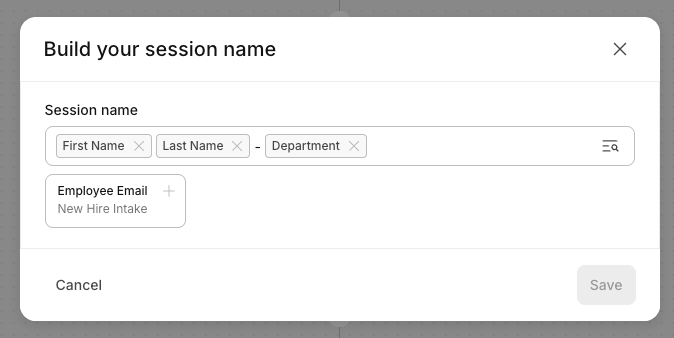
The fields can come from form inputs, data source records, signature fields, webhook payloads, or other eligible workflow steps. This gives the team control over whether an employee is easiest to identify by name, email, department, or a combination of values.
Once the draft workflow is published, the chosen format appears in the Session name column for its sessions. The original Session ID remains available as a separate column when the team needs the underlying system reference.
Protect employee data at every view
Recognizable session names may contain personal information. Streamline applies several controls before that information appears:
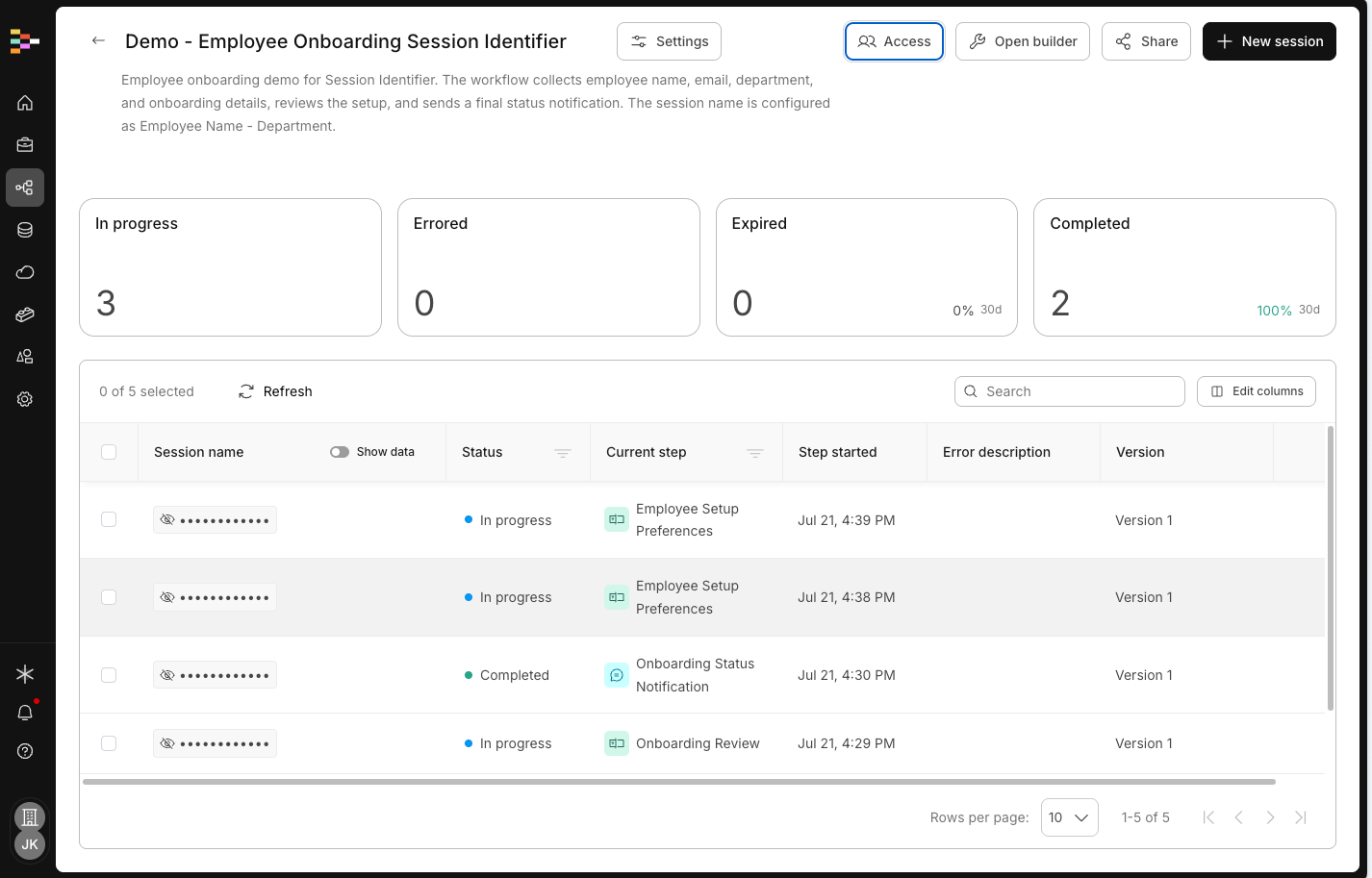
- Masked by default. Session name values are masked in the session list and detail view. The unmasked value is not sent to those surfaces until an authorized user deliberately reveals it.
- Permission-gated. Admins and Managers grant View data access per project to specific users or groups. Without that permission, Streamline returns no resolved session name and shows the system ID instead.
- Deliberate, audit-logged reveal. An authorized user turns on Show data to reveal session names. Streamline records the user, timestamp, and affected session in the audit log, but never writes the revealed value into the audit record.
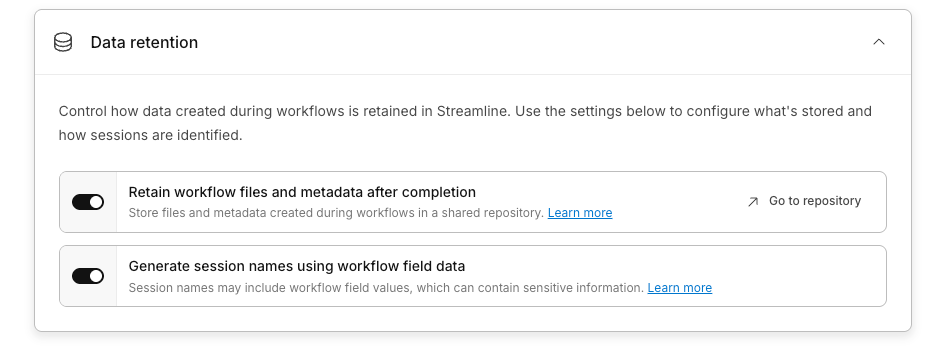
- Account-level control. An account admin can disable session names generated from workflow data across the account. Existing sessions then continue to use system-generated IDs.
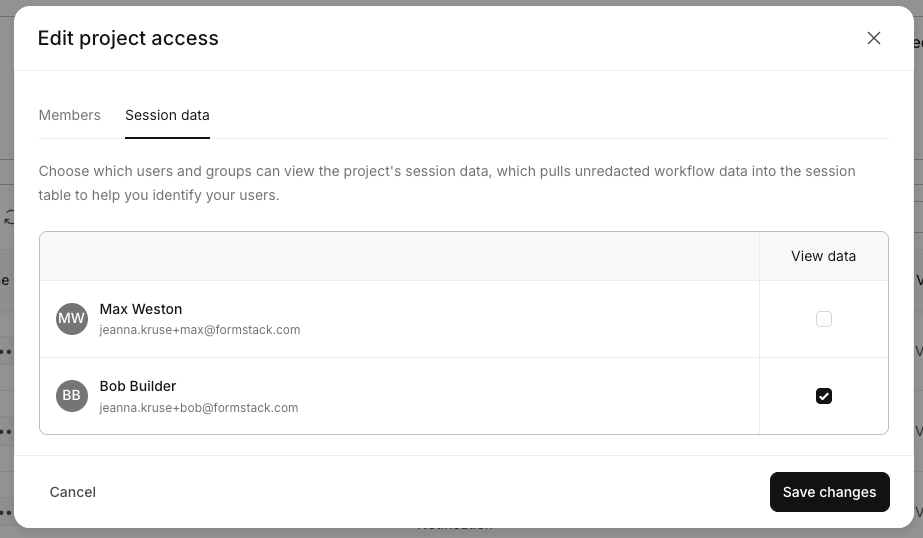
These controls let the onboarding team use employee context when it is needed without exposing it during routine session management.
Availability
Session Identifier is now available for all Intellistack Streamline customers with access to workflow session management, unless they have chosen they do not want this on their account. Accounts that do not want this option can choose to opt out in the Account > Security > Data Retention settings.
More information about Unique ID can be found here.