



Two new integrations, Microsoft Teams and Microsoft OneDrive, bring Intellistack Streamline workflows directly into the Microsoft 365 environment. Teams sends workflow notifications to your channels, and OneDrive delivers documents to your cloud storage. Together, they close the loop between generating output in Streamline and getting it where your organization already works.
Send workflow messages to Microsoft Teams
The Microsoft Teams integration adds a delivery step that posts messages to any Teams channel, public or private, that the authenticated user can access.
Configure it by selecting a team and channel, then compose your message. Content can be static text, dynamic values mapped from earlier workflow steps, or a mix of both. A form submission timestamp, an approval status, a generated document link - any data available in the workflow can flow into the message body.
When the message posts, Teams returns a webUrl - a direct link to the posted message. That link enters the workflow data context, so downstream steps can reference it. Include the message link in a follow-up email, log it in a CRM record, or use it as an audit trail entry.
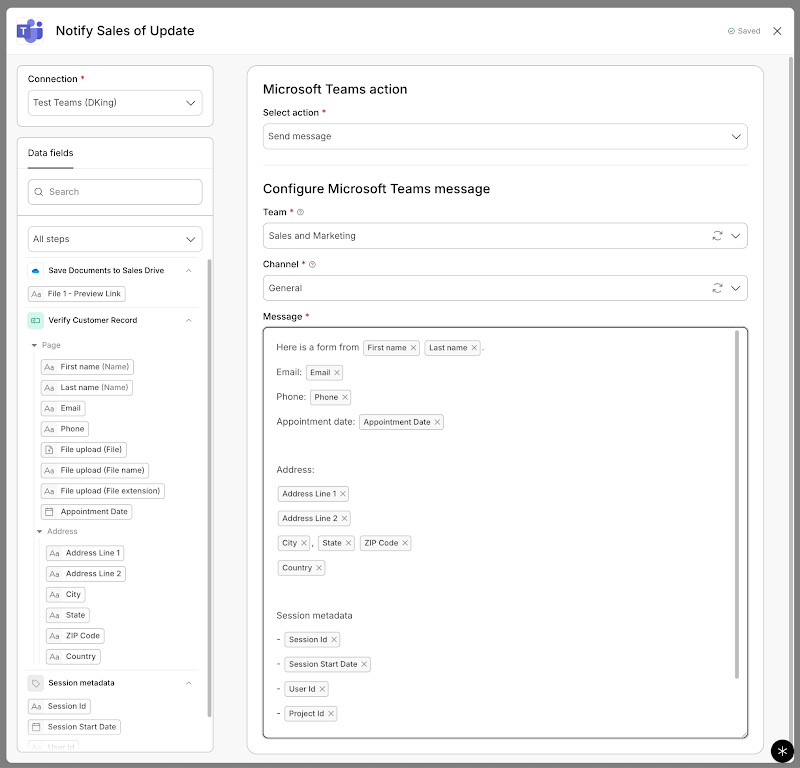
Supported message formats include plain text, bold, italic, strikethrough, preformatted text, blockquotes, and hyperlinks.
The step also supports natural language configuration through Omni. Describe what you want - "Send a notification to the Engineering channel when a new request is submitted" - and Omni configures the step.
Deliver documents to Microsoft OneDrive
The OneDrive integration delivers workflow-generated documents - PDFs, signed contracts, processed forms - directly to Microsoft OneDrive.
The step supports two folder strategies:
- Static selection - Browse your OneDrive during configuration and pick a destination folder.
- Dynamic folder creation - Build folder paths from workflow data. A path like Clients/{customer_name}/{date} creates the folder structure automatically if it does not exist.
Documents land in organized, context-specific locations without anyone setting up folders in advance.
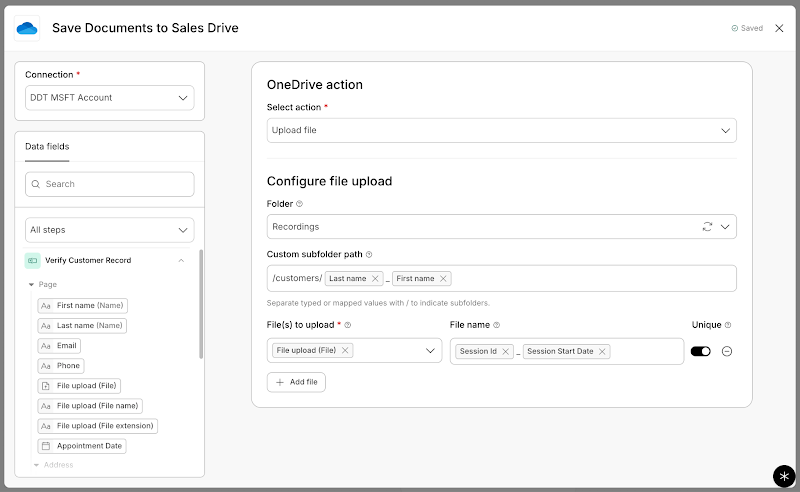
Like Teams, the OneDrive step returns a webUrl to the workflow data context - a shareable link to the uploaded document. That link is immediately available to subsequent steps: email it to a stakeholder, post it to a Teams channel, or write it to a database record.
The step handles files up to approximately 3.2 GB and supports all document types generated within Streamline workflows.
Better together: example workflows
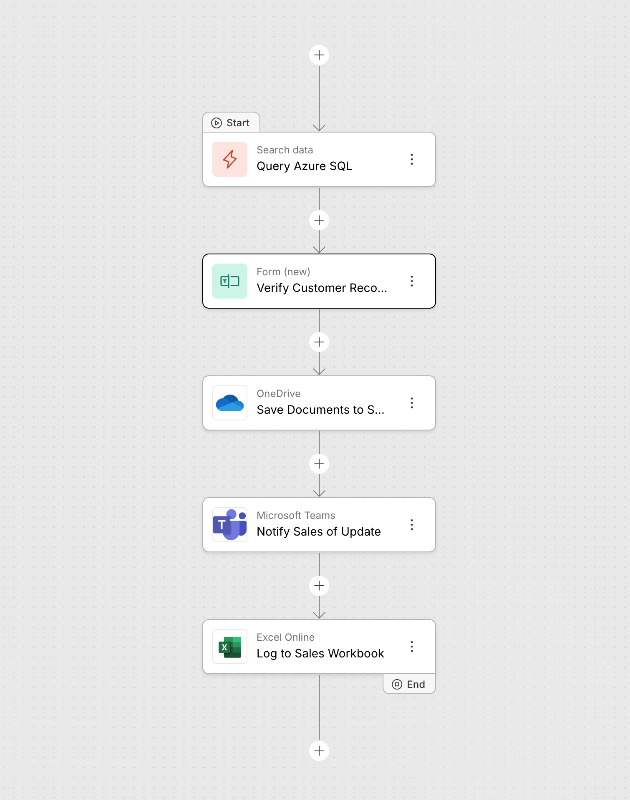
These integrations are useful independently, but the real leverage comes from combining them in a single workflow. Each step's output feeds the next, creating end-to-end automation inside Microsoft 365.
- Signed contract delivery - A customer signs a contract. The OneDrive step files the signed PDF to Contracts/{customer_name}/{date}. The Teams step posts to the Sales channel with the OneDrive link from the previous step's output.
- Employee onboarding - HR generates onboarding packets. OneDrive stores each packet by employee name and start date. A Teams message confirms the packet is filed and links to the folder.
- Compliance and audit trail - A quality inspection or financial approval runs through Streamline. The completed document goes to a compliance folder in OneDrive. A Teams message posts to the audit channel with the document link, timestamp, and approver name - all mapped from earlier workflow steps.
- Customer request intake - A customer submits a service request. The workflow generates a summary PDF and delivers it to Service Requests/{customer_name}/{request_id} in OneDrive. A Teams message hits the support channel with the customer name, request type, and document link.
Important requirements and limitations
- Authentication - An administrator must configure Microsoft 365 OAuth authentication for each integration in the Integrations Marketplace before the steps appear in the workflow builder. Builders select from configured authentications when building workflows.
- Teams: channel messages only - The Teams integration posts to channels. Direct messages, replies to existing messages, and file attachments are not supported.
- Teams: limited HTML - Supported tags are bold, italic, strikethrough, preformatted text, blockquotes, and hyperlinks. Headers, lists, and images are not rendered. The <br> tag is not supported - use plain newlines instead.
- OneDrive: delivery only - The OneDrive integration uploads files. Reading, searching, or deleting files in OneDrive is not supported.
- OneDrive: personal storage only - For shared drives or team sites, use the SharePoint integration.
Try it today
Both the Microsoft Teams and Microsoft OneDrive integrations are available now in Intellistack Streamline. Connect them in the Integrations Marketplace and add the steps to your next workflow.
Relevant help documents: