
Set up new users with the right access, context, and starting point -- before they log in



Intellistack Streamline's enhanced user invitation feature lets Admins and Managers configure a new user's role, group membership, project access, and first-login landing page in a single guided flow. They can also include a personalized message that travels with the user into the invitation email and through their first login. New users will now arrive with the right access, a clear starting point, and context from the person who brought them in.
That matters because the gap between "invited" and "productive" is where new team members stall. They have credentials but no direction, and the admin who invited them ends up configuring access and explaining expectations after the fact across multiple screens and side channels. This flow eliminates that gap by handling setup and communication together, before the invitation is sent.
Set up access and expectations in one flow
Adding a user is now a two-step process that handles configuration and communication together.
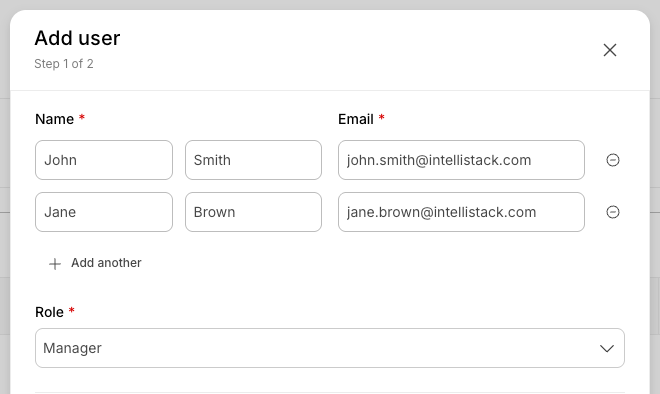
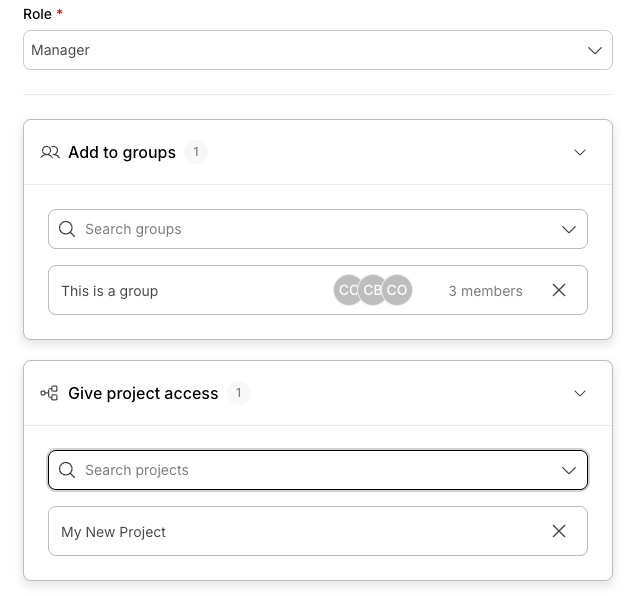
Step 1 -- User Setup. Enter the user's name, email, and role. Expand the groups and projects sections to assign membership and access right there, before the invitation is sent. Need to add several people who need the same role and access? Click + Add more to batch them.
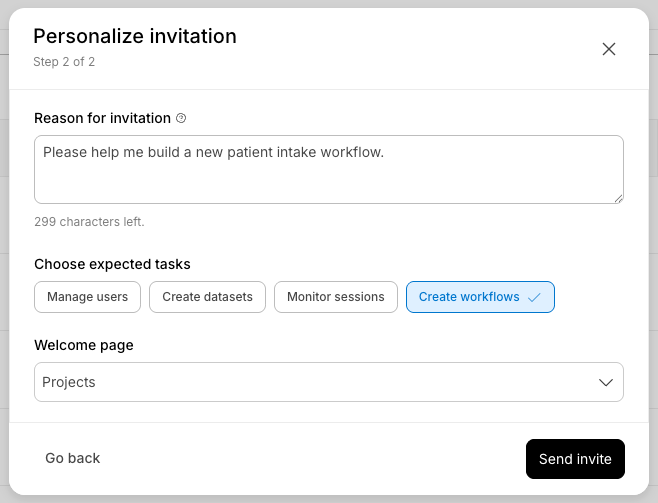
Step 2 -- Personalize the Invitation. Write an optional message explaining why the person is being invited, what they'll work on, or who they'll collaborate with. Then select which page the user lands on after their first login -- options are filtered by role so they only see what's relevant to their permissions.
This means a Builder invited to work on a specific project can land directly in the Projects view with their project already accessible, instead of arriving at a generic homepage and hunting for where to start.
Send invitations that actually inform
The invitation email is no longer a link and a logo.
When you send an invitation, the recipient sees your organization's branding, who invited them and their assigned role, a role-specific capabilities summary describing what they can do on the platform, and a summary of their project access -- including project names and count.
If you wrote a context message, it appears as a styled quote with your name and avatar, giving the new user a direct, personal explanation of why they're joining and what's expected.
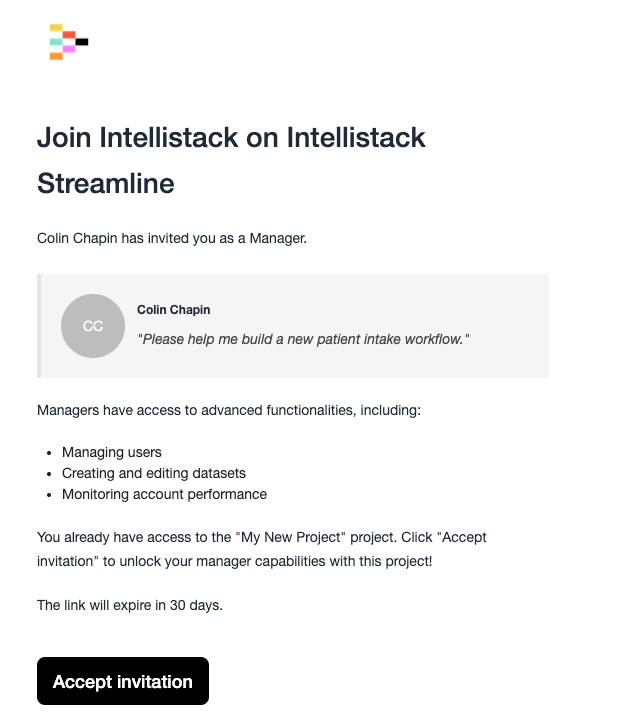
The invitation link expires after 30 days. Pending invitations can be tracked and resent from the Pending tab in the Users section.
A first login that picks up where the invitation left off
When the new user accepts and signs in for the first time, a welcome modal greets them with the context message from their inviter, a description of what their role can do, and a Get started button.
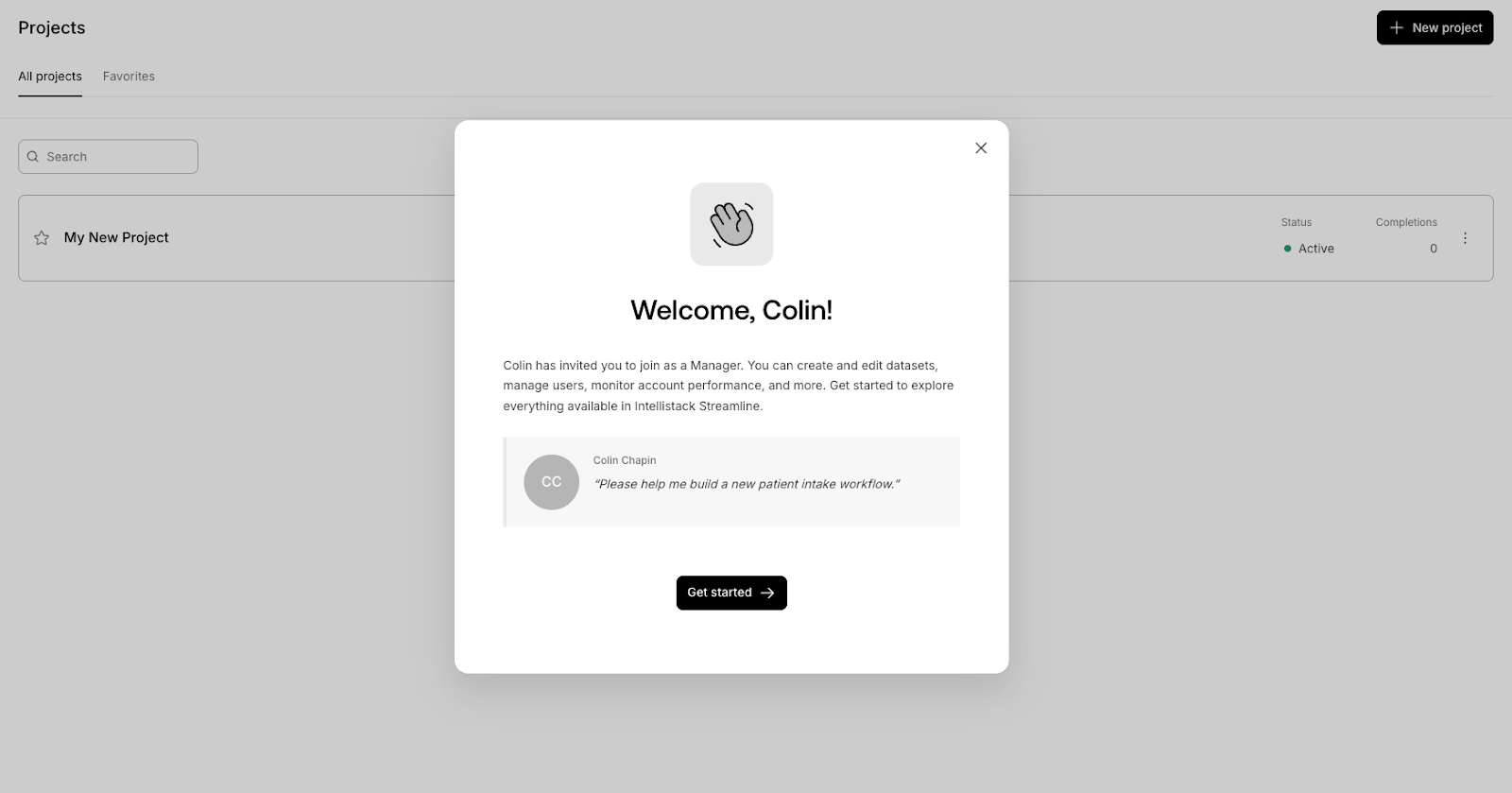
After dismissing the modal, they land on the welcome page selected during the invitation -- not a default homepage. The first-login experience connects directly to what the inviter communicated, so the user doesn't have to re-orient.
The welcome modal appears once, on first login only.
Who this helps
Admins onboarding new team members
Admins used to invite someone and then scramble to configure their access after the fact. Now they configure everything — role, groups, projects, first-login page — before the invitation goes out.
Managers bringing people into specific projects
Managers used to invite someone to a project and then follow up separately to explain what they were actually there to do. Now they assign their project access and add context during the invitation itself — so they arrive already oriented to their scope.
Available now
The enhanced invitation flow is available for all Intellistack Streamline customers. Navigate to Users from the account menu and click Add User to get started.
Note: When SSO is enforced for your organization, user provisioning is handled through your identity provider and this invitation flow is not available. See the full guide for SSO provisioning details.