

File Every Workflow Document in the Right Google Drive Folder, Automatically


.jpg)
Josh Katinger, Principal Product Manager
Every signed contract, processed form, and generated PDF from your Streamline workflows has to land somewhere. For most teams, that somewhere is a single shared Google Drive folder, and someone sorts it later.
A legal operations team running client intake feels this every day. Each engagement generates a signed letter that should live in that client’s folder — not a shared dump folder someone has to organize after the fact. Google Drive Dynamic Folders makes that automatic: define the path from your workflow data once, and every run creates the right folder structure and files documents where they belong.
How it works
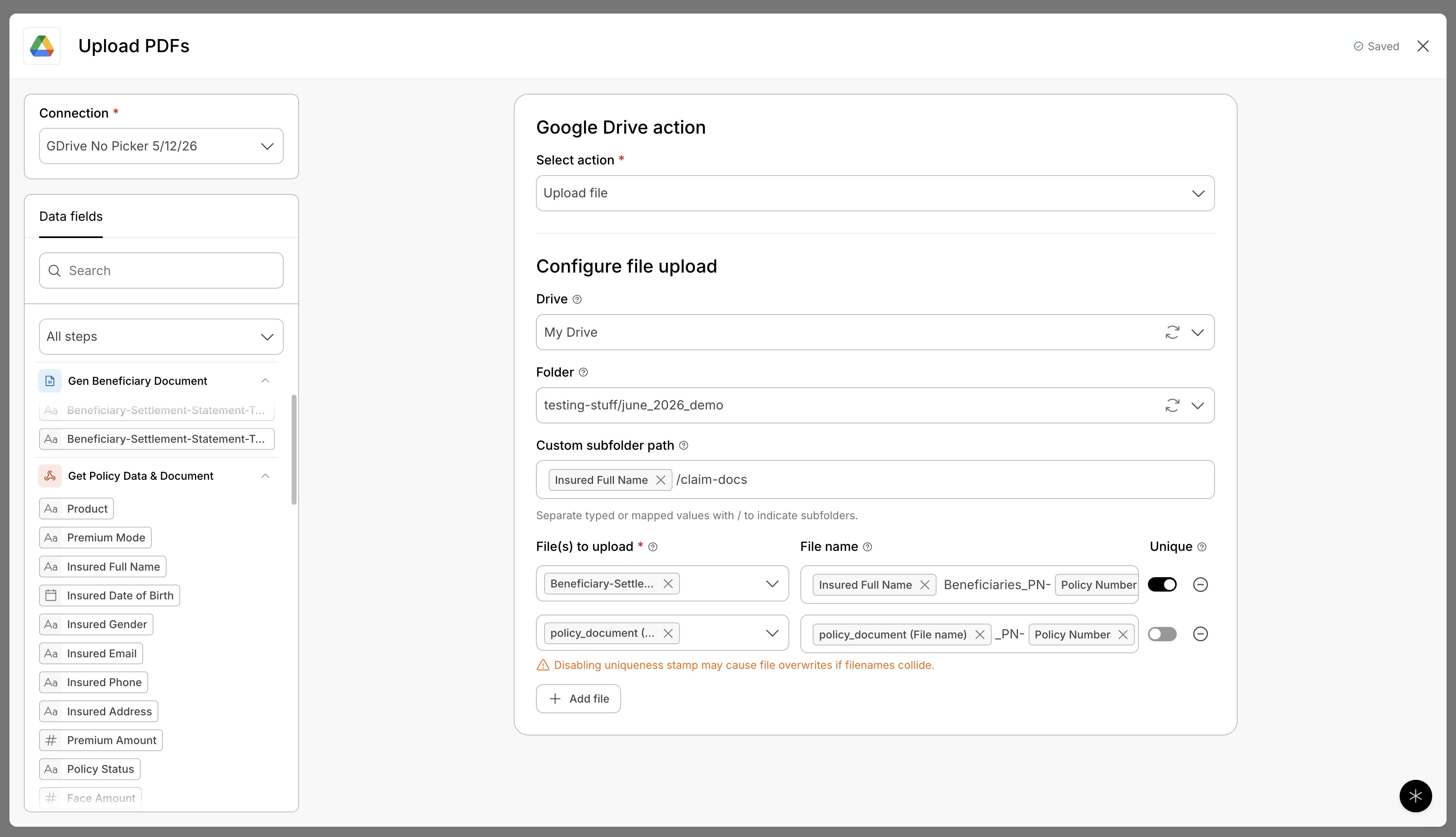
When you configure a Google Drive upload step, you select a destination Drive (My Drive or a shared drive) and a base Folder. A Custom subfolder path field then lets you build a path from static text and data fields pulled from earlier steps. Separate values with a forward slash to create nested subfolders.
A path like [First name]_[Last name]/documents produces a per-person folder with a documents subfolder inside it. At execution time, Streamline resolves the data fields, walks the path one level at a time, creates any folder that is new, and reuses any folder that already exists. The file lands in the final folder in the path.
Because the path is built from workflow data, each session files itself. A workflow that runs a thousand times produces a thousand correctly placed files.
What it enables
The automation files documents the way a person would, and it happens on its own.
- Client- or matter-organized filing — Each session creates a folder named after the client, the matter, or the record ID. Signed agreements, generated documents, and uploaded files all route to the right place.
- Date-based archiving — A path like
2026/June/[Submission ID]mirrors how teams already structure their records by time period. - Department or program hierarchies — Nested paths let teams reproduce their existing organizational structure in Drive automatically.
For organizations that treat Google Drive as their system of record, the workflow output matches their filing conventions.
The building blocks
- Drive and base folder: Pick the destination Drive and a starting folder. The dynamic path is appended beneath it.
- Custom subfolder path: Combine static text and data fields, separated by
/for nesting. The field is optional — leave it empty to upload directly to the base folder. - Folder reuse: Streamline matches folders by exact name at each level, so the same client folder is reused across runs and stays tidy.
- File naming: Naming the output file is optional. Leave it blank to keep the file’s existing name, or build a name from static text and data fields, the same way you build the folder path.
- Unique toggle: Keep the Unique option on to append a uniqueness stamp so files with matching names each save cleanly.
- Multiple files per step: A single step delivers to one folder path and can send several files into that path, each with its own name. To route files to different folder paths, add a Google Drive step for each path.
Example workflows
- A legal team files each signed contract under
[Client name]/[Year]. - An HR team routes onboarding packets to
[Department]/[Employee name]. - An education team archives student submissions to
[Program]/[Term]/[Student ID]. - An operations team sorts compliance documents to
[Region]/[Country]/[City].
Getting set up
- Create a Google Drive connection. From the Integrations tab, add a Google Drive connection and authenticate your account. The new connection grants the Google permissions that dynamic folders use to build folder structures on your behalf.
- Choose the Google Drive step. When adding the step to your workflow, select Google Drive to use dynamic folders. If you set up Google Drive previously, you may also see a Google Drive (legacy) step; your existing workflows continue to run on it unchanged, but dynamic folders are available only on the Google Drive step with a new connection.
- Add the Google Drive step after a file source. Place the step after a step that supplies a file, such as a Form file upload or a generated document, then select your connection and the Upload file action.
- Keep path segments concise. Google Drive sets a limit on folder name length, so short, meaningful path segments work best.
Available now
Google Drive Dynamic Folders is live in production for all Intellistack Streamline customers. To get started, create a Google Drive connection from the Integrations tab and add the Google Drive step to your workflow. Full setup steps are in the help center: How to Add a Google Drive Integration.