


A new Manager accepts an invitation, signs in, and lands on the page their inviter chose for them. Their role and project access are already set, and a welcome message told them why they were brought in. That is the intent of our enhanced invitation flow, so new users are: oriented, with the right access, on the right page.
Omni Guided Onboarding picks up from there. If the admin selected setup tasks when inviting them, Omni opens on first login with that checklist and can walk them through any task conversationally. If no tasks were selected, Omni still meets them with role-specific suggestions for wherever they are. Either way, the invitation got the user to the right starting point, and Guided Onboarding gets them to their first real outcome.
The gap between "logged in" and "productive"
Setting a user up before they log in solves the access and orientation problem. It does not solve the next one: a new user knows where they are but not what to do, or how to do it, without hunting through documentation or waiting on an implementation call.
That gap is where onboarding stalls. Users who never complete a key setup task stall before they reach a tangible result. Guided Onboarding closes the gap two ways - a setup checklist the inviting admin can hand a new user, and contextual guidance that surfaces the right action on whatever page they are on.
A setup checklist the admin assigns at invite
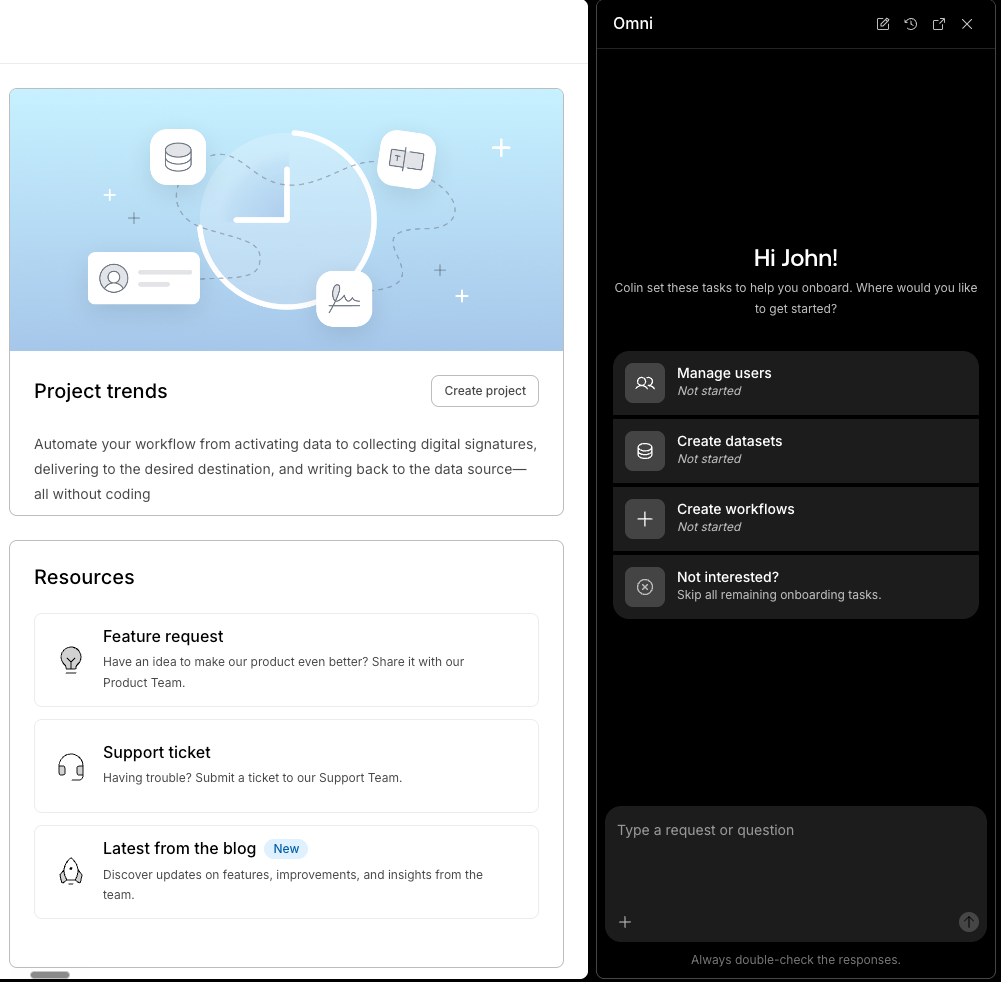
When an admin invites a new user, they can select the setup tasks that user should start with - for example, creating workflows, using the Builder API, or executing a workflow. Those tasks become a checklist that Omni opens with on the user's first login. They can start any task directly from the list, and Omni keeps the list current as they go:
- New - the task has not been started.
- In progress - the user has started but not finished.
- Complete - the task is done. It stays in the list as a record but can no longer be clicked.
The list reflects real progress, not just clicks inside Omni. And if someone would rather explore unguided, they can choose Abandon tasks: unfinished tasks are cleared and Omni stops following up about the checklist. Users will instead see relevant suggestions instead.
Contextual guidance on every page
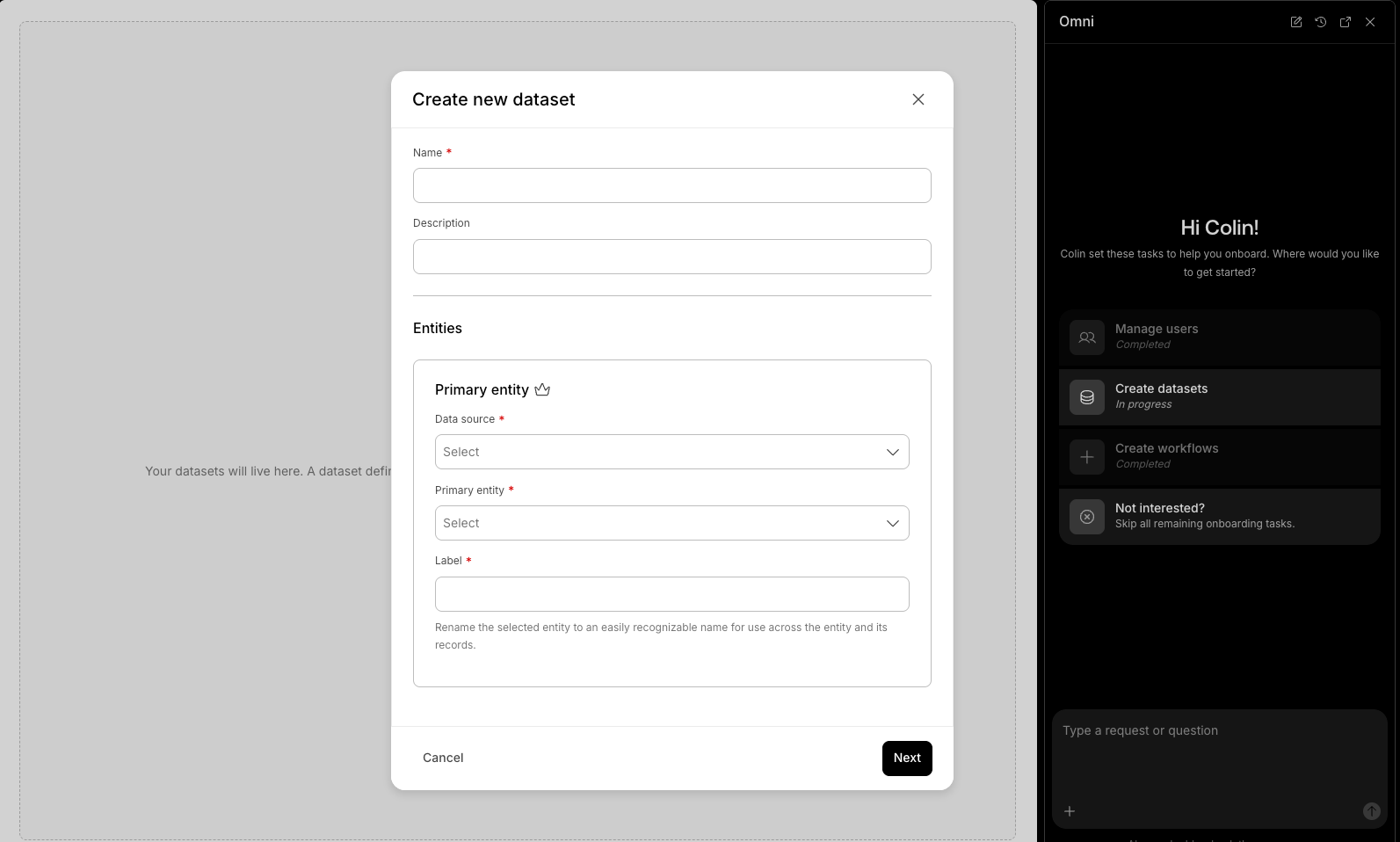
A checklist is not required for guidance. Whether or not an admin assigned tasks, Omni offers suggestions tied to wherever the user is. When a user opens Omni without an active conversation, or moves to a new area of the product, Omni presents role-specific suggestions for that area instead of a blank chat box:
- Home - getting-started suggestions
- Integrations - connect a data source, add an event integration
- Security - review security controls, set up SSO, review MFA settings
- Users - add users, create groups, review two-factor settings
- Datasets - create a dataset, manage fields, review dataset usage
- Workflow Builder - build a new workflow or improve an existing one, including help configuring an individual step
- Projects - create and oversee projects, review performance, or pick up recent work
- Workspace - monitor session health and assignment distribution, or start a Quick send or project session
Suggestions are scoped to the user's role, so people only see actions they can actually take. On the Projects and Workspace pages the options differ by role - Admins and Managers see options for creating and overseeing projects, while Operators see options focused on running and reviewing their own sessions.
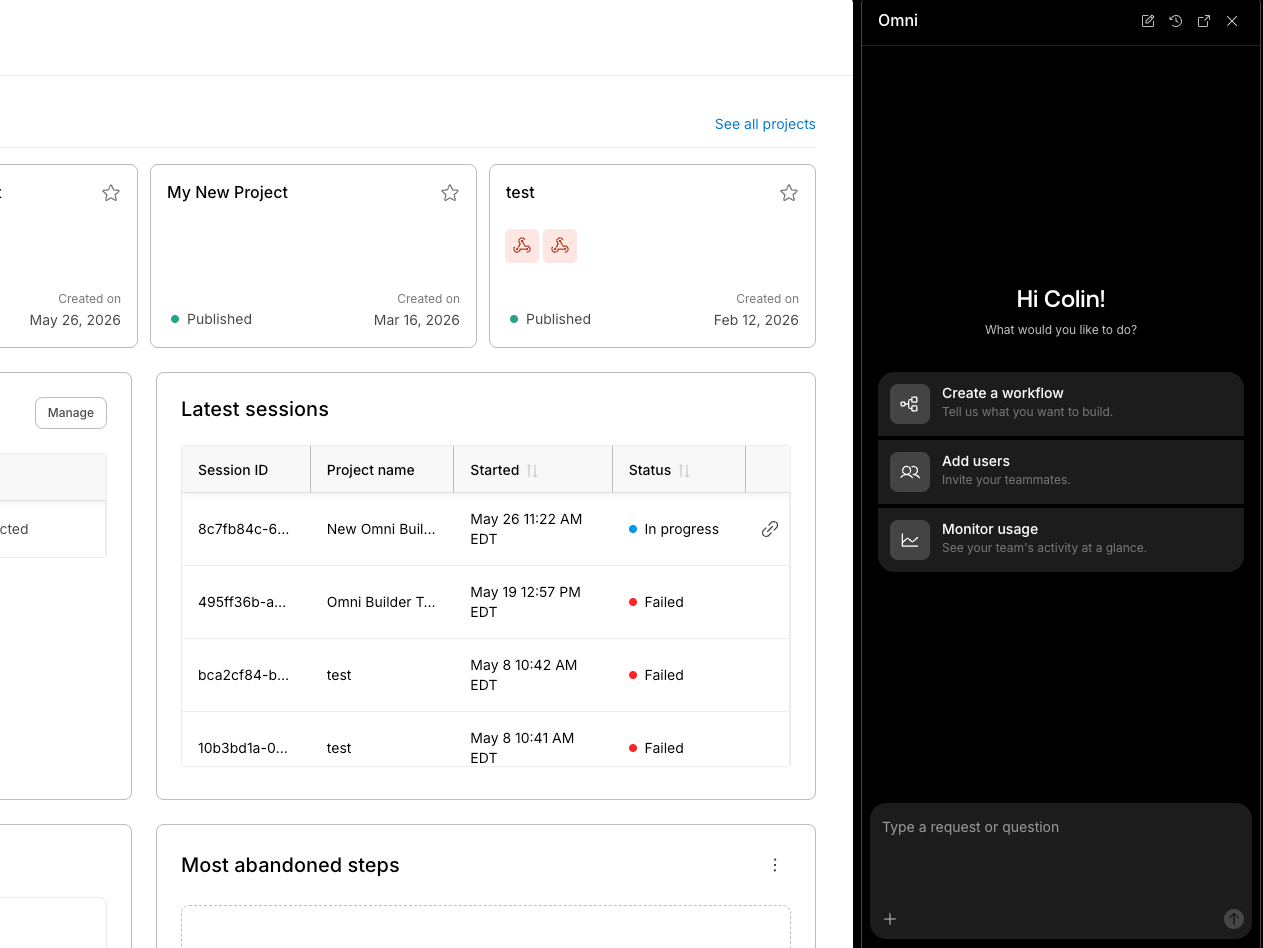
Omni walks the user through the task
Picking a task or suggestion does not drop the user into a help article. Omni launches a guided, conversational walkthrough of that task - explaining the options and prompting for what it needs to continue - so a new user can finish setup independently without leaving the product or scheduling time with an implementation specialist.
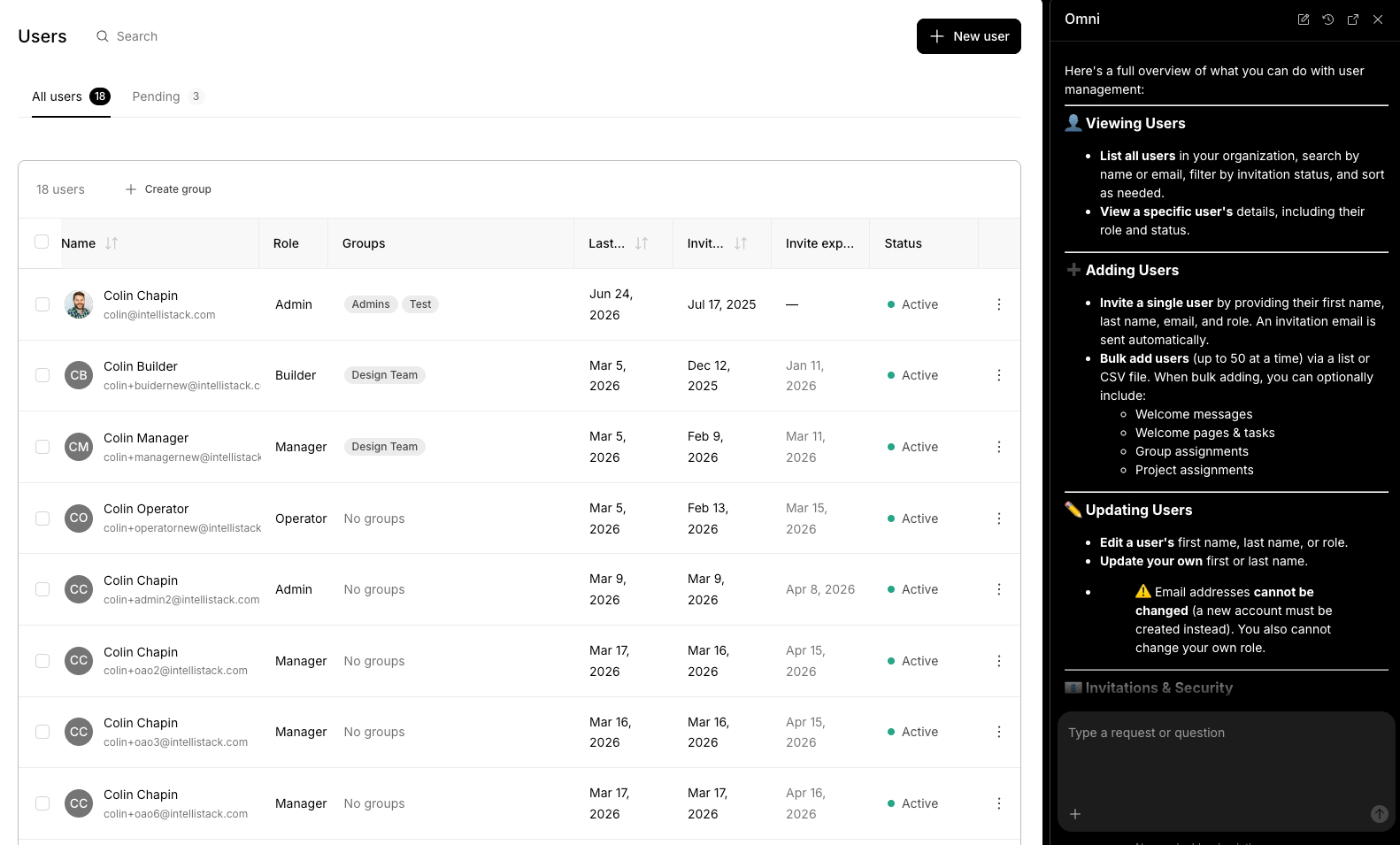
Pick up where you left off
Setup rarely happens in one sitting. Omni remembers each user's progress, and on their next login the task list reappears with every task in its current state. An unfinished task can be resumed where it was left, not restarted.
Reminders that bring people back with context
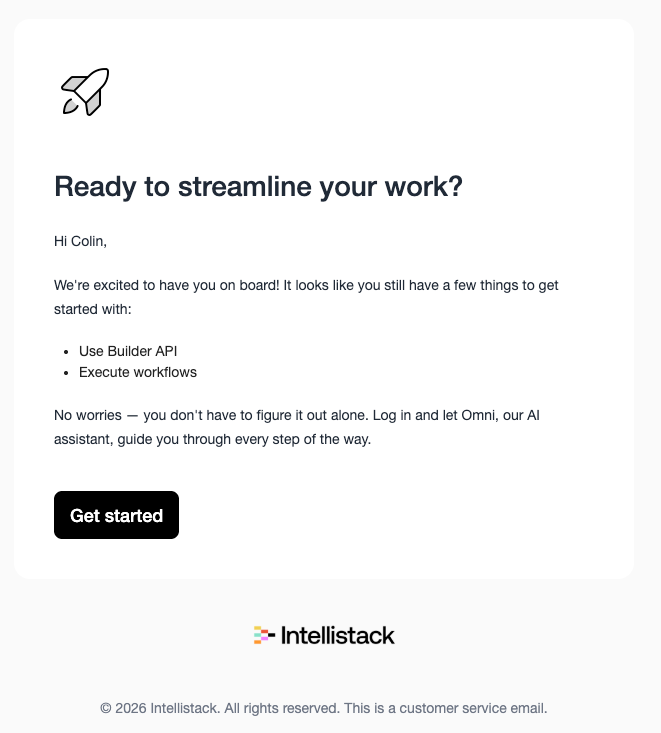
Not every user returns on their own. Omni Guided Onboarding sends reminder emails to bring stalled users back, and each type is sent only once per user:
- Invitation reminder - for users who have not yet accepted their invitation, so they can accept without hunting for the original invite.
- Incomplete tasks - for users who have logged in but still have setup tasks unfinished, with a direct link back to pick up where they left off.
- Get started - for users who arrive without any assigned tasks, this stands in for the incomplete-tasks reminder and points them to log in and let Omni guide them from there.
Who this helps
New users finding their footing. Instead of a blank screen and a search bar, they get a clear, role-appropriate checklist on day one and conversational help to finish each step.
Admins and Managers onboarding a team. The invitation flow let them configure access and context up front. Guided Onboarding reduces the follow-up - the explaining of what to do and how - by handling first-task guidance inside the product.
Available now
Guided Onboarding is available now in Intellistack Streamline for all four standard roles. The next new user you invite will be met by Omni on their first login, with a setup checklist and guided help to complete it. https://help.intellistack.com/hc/en-us/articles/52877250146579-Get-started-faster-with-Omni-Guided-Onboarding