
Write workflow data directly to Excel with the new Excel Online integration


You can now send Intellistack Streamline workflow output data straight into Excel Online, which makes it easier for Microsoft 365-first teams to keep automation outputs in the spreadsheets they already use every day.

What's new
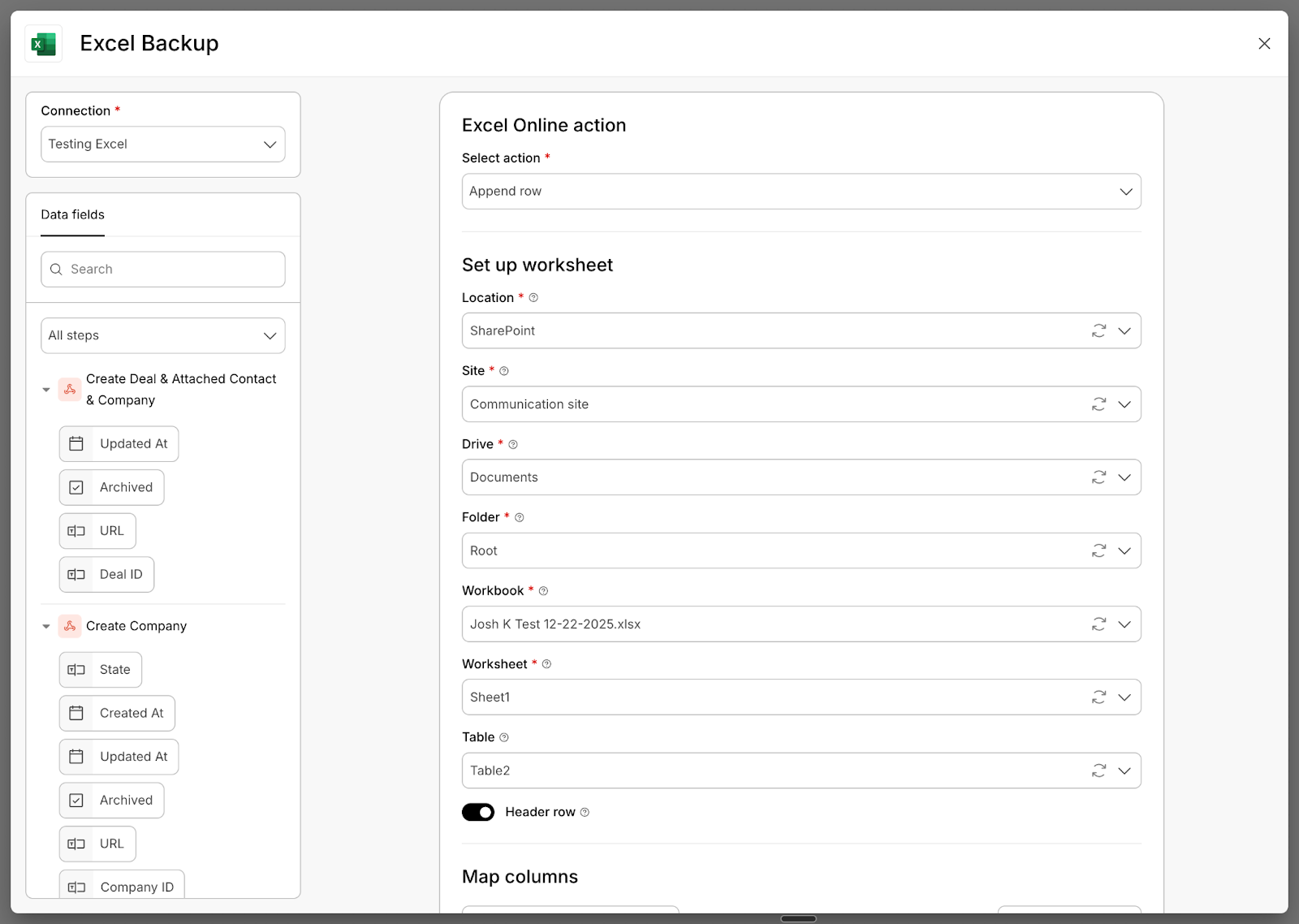
The Excel Online integration for Streamline lets you append workflow outputs to Excel tables stored in OneDrive or SharePoint. It mirrors the Google Sheets write-out experience, but for organizations standardized on Microsoft 365.
With this release, you can:
- Append rows to an existing Excel table when a workflow completes
- Map workflow fields directly to Excel columns
- Choose the workbook, worksheet, and table you want to write to
- Use Microsoft OAuth authentication configured once by an admin
Why it matters
For Microsoft-first organizations, Excel is the system of record for reporting, tracking, and operational dashboards. This integration lets teams keep automation outputs in their Excel environment without extra handoffs, so they can:
- Keep reports and audit logs in their standard Excel workbooks
- Push workflow results into shared dashboards in SharePoint
- Avoid duplicating spreadsheets across productivity suites
How it works at a glance
- An admin sets up Excel Online authentication in the Integrations Marketplace.
- Builders select that authentication in the workflow step.
- Builders choose the workbook, worksheet, and table.
- Workflow outputs are mapped to Excel columns and appended as new rows.
Example workflows
- Operations: Send completed onboarding workflows into an Excel dashboard for weekly status reporting.
- Finance: Log approved expenses into a shared SharePoint workbook used for month-end reporting.
- Customer Success: Append survey results to a OneDrive workbook that powers quarterly analysis.
Important requirements and limitations
- Excel Table required: The destination range must be formatted as an Excel Table.
- Write-only: This integration appends rows only; it doesn't read data or update existing rows.
- Location: Files must live in OneDrive or SharePoint, not local storage.
- Permissions: The authenticated user must have access to the workbook.
If you need a quick refresher on Excel Tables, Microsoft's guide is a good starting point.
Available now
The Excel Online integration is available now in Intellistack Streamline. If your team is standardized on Microsoft 365, this gives you the same spreadsheet write-out capabilities you already have with Google Sheets without changing tools.
Ready to try it? Connect Excel Online in the Integrations Marketplace and add the step to your next workflow, and consult this help file for step-by-step instructions.