



.jpg)
Most business processes don't stay in one place. A record lives in one system, a file gets shared and stored somewhere else, a meeting gets scheduled separately, and the team finds out what's happening through a message sent after the fact. Streamline connects those pieces into a single workflow across the Microsoft tools your team already uses so nothing has to be re-entered, re-uploaded, or chased down by hand.
A procurement team receives a request to onboard a new vendor. The vendor may already have a record in Microsoft Dataverse, the agreement belongs in SharePoint or OneDrive, the review needs time on the calendar, the team coordinates in Microsoft Teams, and the final decision may need to land in an Excel Online log.
Intellistack Streamline can turn those separate activities into one vendor onboarding workflow. The request data moves with the process, and each Microsoft service receives the information, file, event, message, or row it needs.
Here's an example below of moving a vendor onboarding from request to review.
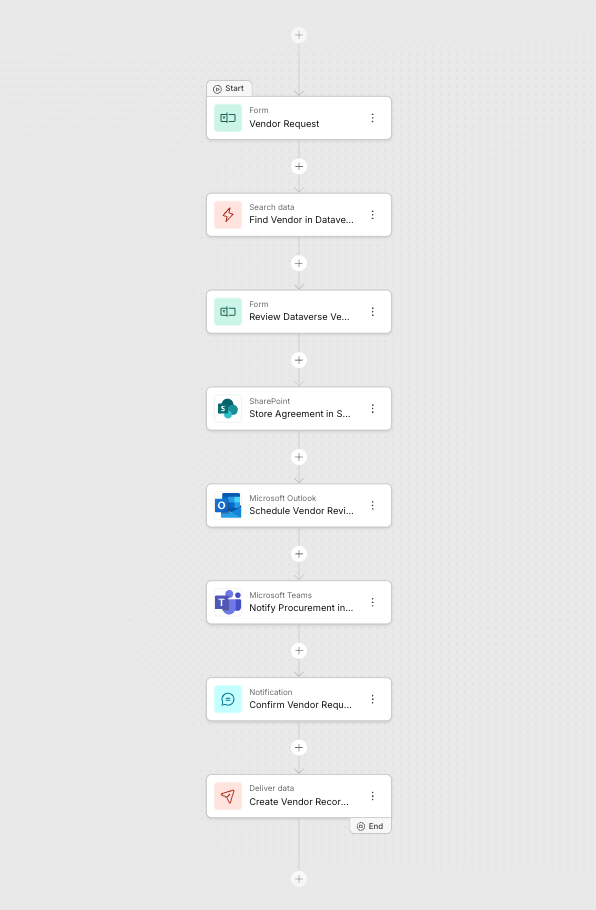
Intellistack Streamline vendor operations workflow with a vendor request form, Dataverse data search and review, SharePoint file upload, Microsoft Outlook event, Microsoft Teams message, confirmation, and Dataverse data delivery.
Begin with the vendor information you already have
The requester starts by entering the vendor name, agreement amount, request summary, proposed review time, and agreement file.
If the vendor already exists in Microsoft Dataverse, a Data Search step can retrieve the record and make its fields available to the workflow. A review form immediately after the search can display the returned information before the workflow continues. If the vendor is new, the completed workflow can create a Dataverse record; if the record already exists, it can update it.
This gives procurement one process for both new and existing vendors without separating the intake from the system that holds the business record.
File the agreement as part of the request
After the requester submits the agreement, the workflow sends the file to SharePoint or OneDrive. Procurement does not need to download the attachment, locate the correct Microsoft storage location, rename the file, and upload it again.
The SharePoint step can select the destination site, document library, and folder. A custom subfolder path can use workflow data, allowing the team to route each agreement by vendor or another value already captured in the request.
The result is a vendor file stored in the team's established Microsoft document environment while the onboarding process continues.
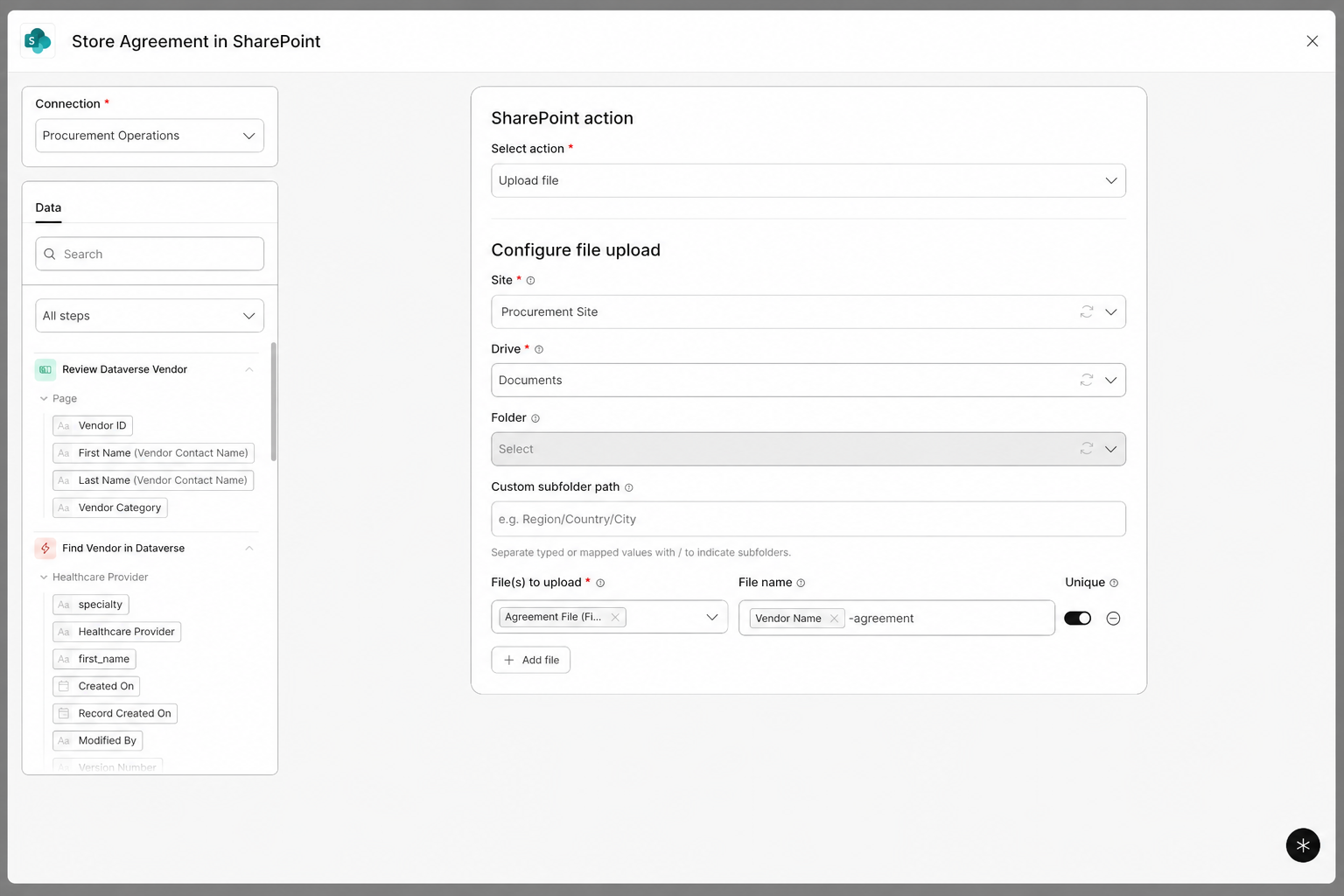
SharePoint upload step using the Procurement Operations connection and Procurement Site, with the agreement file named from the vendor request.
Schedule the review before the request leaves the workflow
The review time entered on the request becomes a Microsoft Outlook calendar event. The workflow maps the vendor name into the event title, the request summary into the description, and the selected review start and end values into the calendar fields.
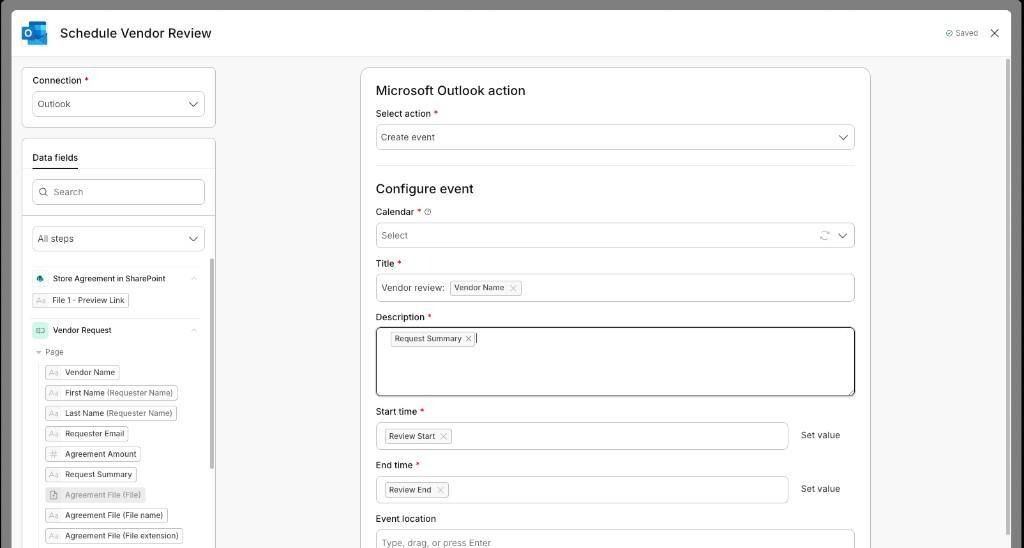
Microsoft Outlook Create event step with the vendor name, request summary, review start, and review end mapped from the Vendor Request form.
The Outlook integration creates events only. It does not update, cancel, delete, or look up existing events. The start and end values must come from date/time fields.
Tell procurement what needs attention
Once the agreement is stored and the review is scheduled, a Microsoft Teams step can post to the procurement channel.
The message can include the vendor name, agreement amount, review time, and other workflow data. The team receives the update in its normal collaboration space with enough context to recognize the request and prepare for review.
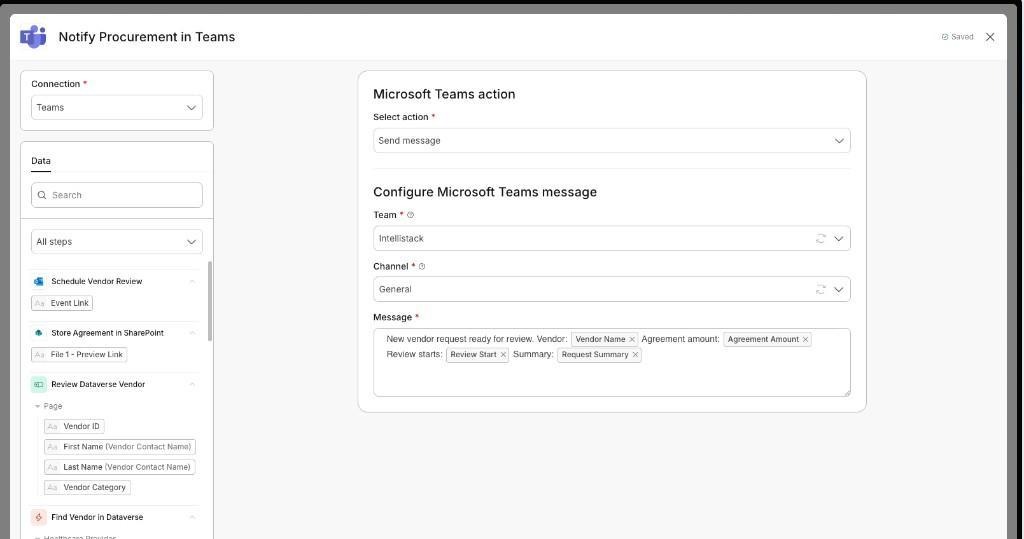
Microsoft Teams Send message step configured for the Intellistack Team and General Channel, with vendor name, agreement amount, review start, and request summary mapped from the workflow.
Append the request to an Excel Online log
After the review details are captured, the workflow can append a row to an Excel Online table stored in SharePoint or OneDrive. That row can include the vendor name, agreement amount, request summary, review time, decision, reviewer, and any other fields the team wants available for tracking or reporting.
Excel Online is a good fit when procurement needs a familiar operational log or lightweight report that multiple stakeholders can review. The workflow writes new rows to an existing Excel table; it does not read, update, delete, or search existing rows.
Used this way, Excel supports the team’s day-to-day visibility while Dataverse remains the structured business system for vendor records.
Record the outcome without maintaining another process
After review, the workflow can write the decision and completed information back to Microsoft Dataverse. It can also append the same outcome to the Excel Online log for teams that use spreadsheets as a shared working record.
The complete path is one connected use case:
- Collect the vendor request and agreement.
- Retrieve or create the Dataverse record.
- Store the agreement in SharePoint or OneDrive.
- Create the Outlook review event.
- Notify procurement in Microsoft Teams.
- Append the request or decision to an Excel Online table.
- Write the decision back to Dataverse for the vendor record.
Build the vendor onboarding workflow
Configuration details are available in the Intellistack Help Center:
- Connect Microsoft Dataverse
- Upload agreements to SharePoint
- Upload agreements to OneDrive
- Create Microsoft Outlook events
- Send Microsoft Teams messages
- Append workflow data to Excel Online
This vendor onboarding workflow is one example, not a fixed blueprint. Keep the Microsoft services your team already depends on, remove steps that do not fit the process, and add integrations as requirements change. Intellistack Streamline connects the work around your existing ecosystem instead of requiring you to replace it.
.jpg)