




Example: Turning student service requests into organized follow-up in higher ed
Insights
Connect Intellistack Streamline to the Google apps your team already runs on

August 18, 2026
Share

.jpg)
Streamline's integration library now includes Google BigQuery, Drive, Sheets, and Calendar, so teams can chain steps across the Google tools they already use into one automated workflow instead of handing a request off between systems by hand.
Here's what that looks like for a higher ed student services team. The same pattern applies to comparable case intake and follow-up work in other verticals, such as referral and denial management in healthcare or claims intake in insurance.
A student submits a service request with their program, academic term, request details, supporting document, and preferred appointment time. From there, the student services team needs to verify the information, file the document, update its tracker, and schedule the follow-up.
Streamline handles that sequence as one workflow. The team keeps the Google tools it already relies on, while Streamline moves the request through each step in order.
Each tool is added to the workflow from Streamline's integration library, filtered to the Google platform.
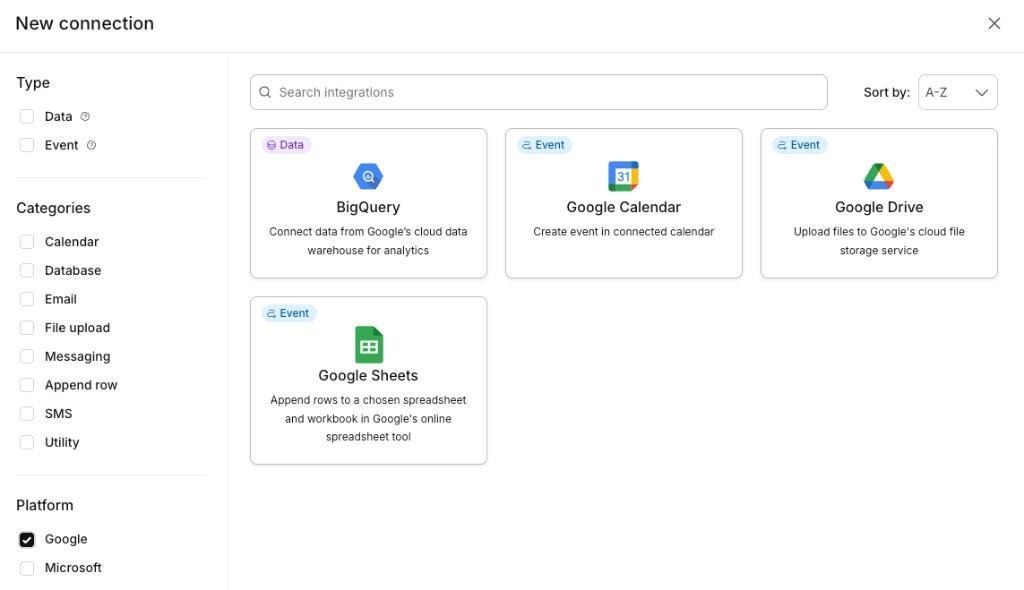
Streamline's New connection panel filtered to Google, showing the BigQuery, Calendar, Drive, and Sheets integrations.
Connected this way, the four integrations can support the workflow below.
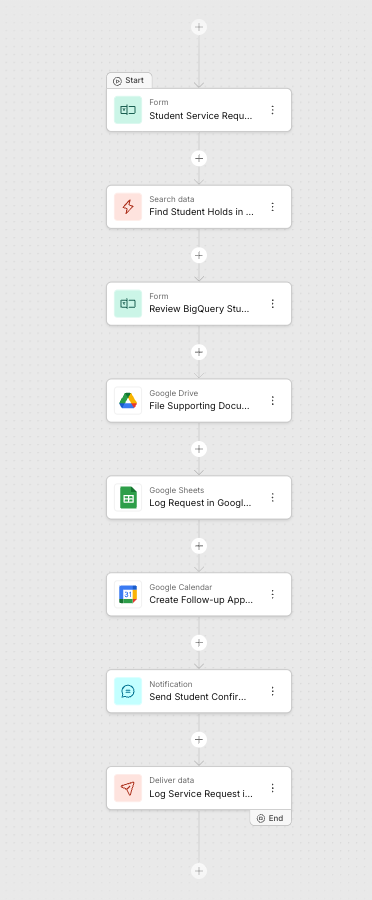
Intellistack Streamline student services workflow with a request form, BigQuery data search and review, Google Drive filing, Google Sheets tracking, Google Calendar scheduling, confirmation, and BigQuery data delivery.
Give the request the context the team already has
The workflow begins with the student's identifying information and reason for contacting the team.
When relevant student data is available in Google BigQuery, a Data Search step can retrieve it and make it available inside the request. A review form immediately after the search can display the returned information before the workflow continues, reducing the need for staff to look it up in another system.
At the end of the workflow, a Deliver Data step can send selected request values to a BigQuery table. This lets the same process use existing data for context and record new workflow data for downstream reporting.
File the supporting document by student and term
When the student submits a supporting document, the workflow sends it to Google Drive.
The destination does not need to be the same folder for every request. A custom subfolder path can combine the student's program, academic term, and student ID. Streamline creates missing folders and reuses folders whose names already match, giving every submission a consistent location.
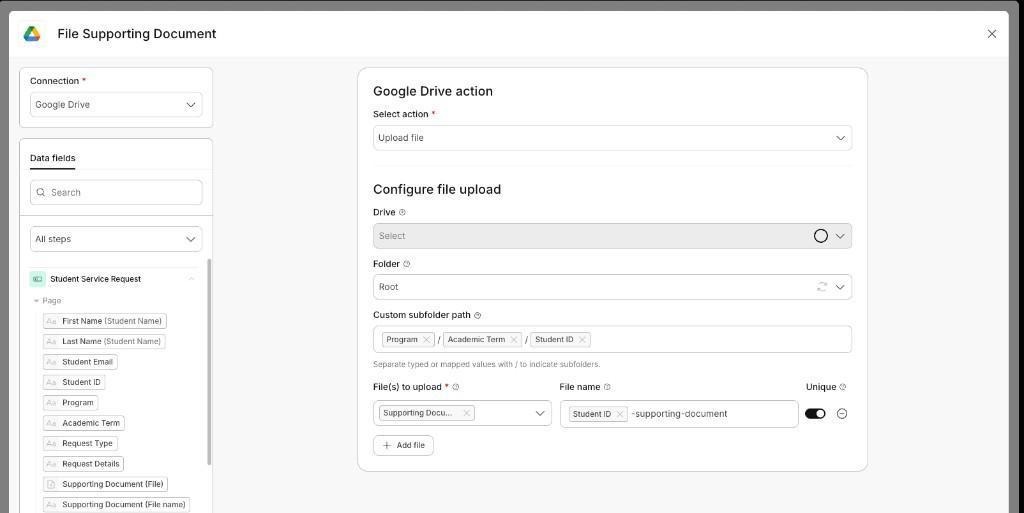
Google Drive upload step with a custom subfolder path built from Program, Academic Term, and Student ID.
For the student services team, the filing rule is established once in the workflow. Staff do not need to create the folder structure or decide where each document belongs after submission.
Add the request to the team's working tracker
After filing the document, the workflow appends the request to the Student Requests spreadsheet in Google Sheets.
Fields from the original request map directly to spreadsheet columns, including the student's name, ID, email, program, academic term, request type, and appointment start time.
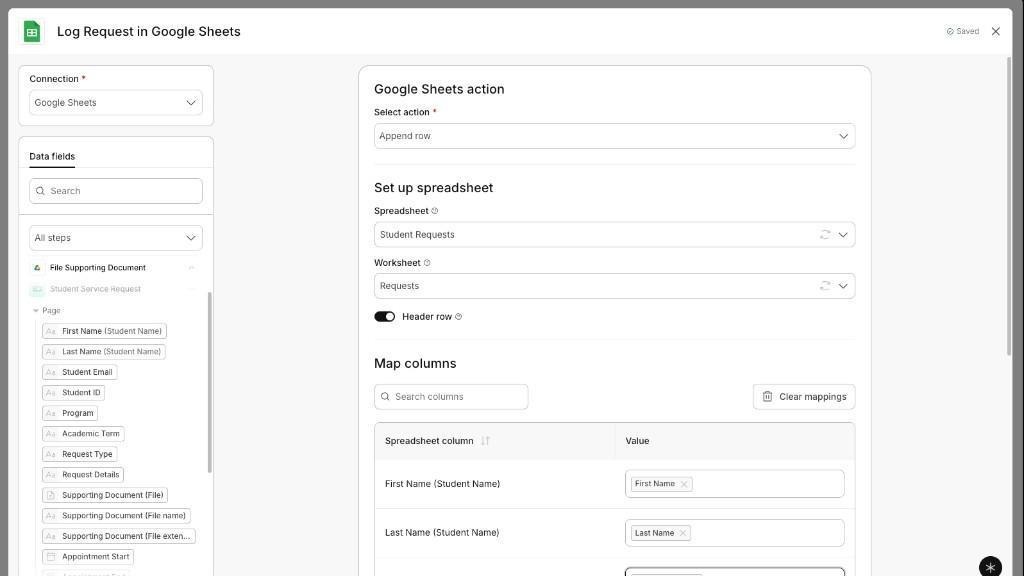
Google Sheets step mapping Student Service Request fields to columns in the Student Requests spreadsheet.
The team can continue using its shared spreadsheet to coordinate work. Streamline keeps the tracker current without requiring someone to open each submission and copy the values into a new row.
Create the follow-up appointment from the request
The preferred appointment values collected from the student become a Google Calendar event.
The workflow uses the request type and student ID in the event title, places the request details in the description, and maps the selected appointment start and end times. It can also include an event location and attendees.
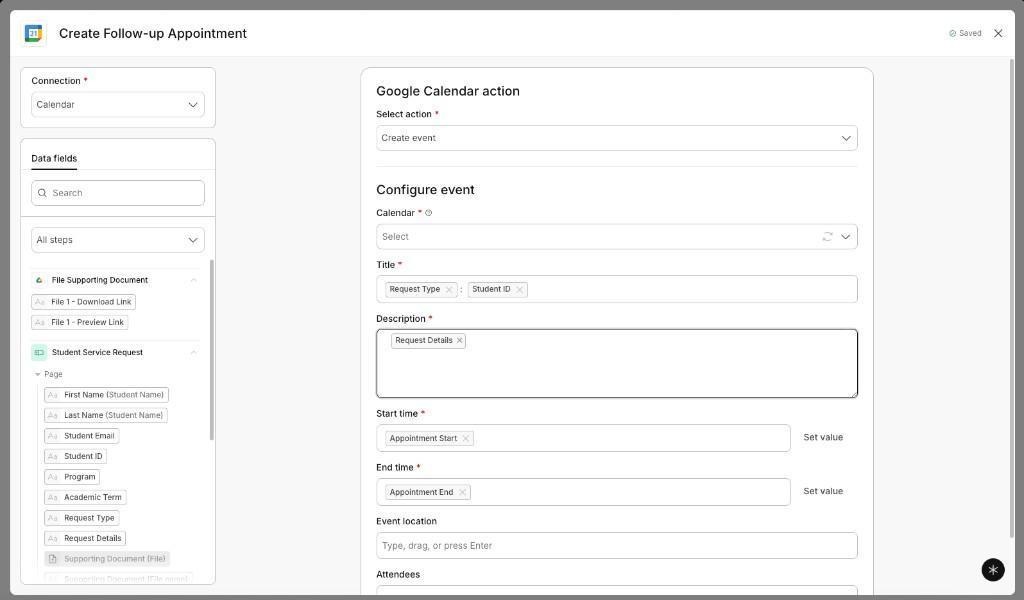
Google Calendar Create event step with request type, student ID, request details, and appointment times mapped from the Student Service Request form.
The integration returns the event link, which a later notification can send to the student. Google Calendar creates events only; it does not update, cancel, delete, or look up existing events. Start and end values must come from date/time fields.
Close the loop with the student and the service team
By the end of the workflow:
- Existing student context has been retrieved from BigQuery when needed.
- The supporting document has been filed under the correct Google Drive path.
- The request has been added to the team's Google Sheets tracker.
- The follow-up appointment has been created in Google Calendar.
- The student can receive a confirmation with the next-step details.
- Selected request values can be delivered to BigQuery for downstream reporting.
The student completes one request. The service team receives an organized case across the Google tools it already uses.
Build this workflow — or one like it
Whether you're setting up this exact student services flow or a similar case-intake workflow in another vertical, configuration details for each integration are available in the Intellistack Help Center:
- Connect Google BigQuery
- File supporting documents in Google Drive
- Append requests to Google Sheets
- Create Google Calendar events
.jpg)
.jpg)

