


When you get access to your Intellistack Streamline account, the platform is already working on your behalf. Before you open the builder for the first time, it analyzes your organization based on your work email domain, infers your industry and likely use cases, and generates a workflow tailored to your context - with your brand applied.
How the profiling works
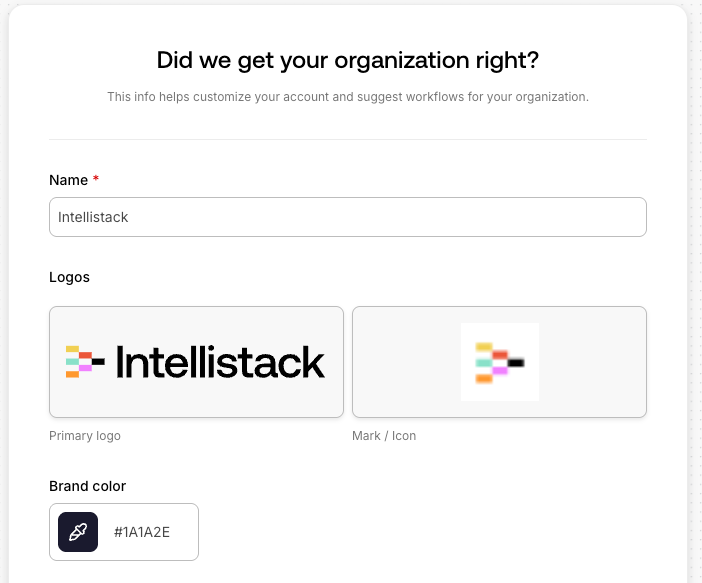
On first login, Streamline runs a profiling pass using your work email domain. It identifies your company, classifies your industry, infers likely use cases, and gathers brand assets including your primary logo, logomark, and primary color. All of this is sourced from publicly available information - no private data is accessed. This takes a few minutes.
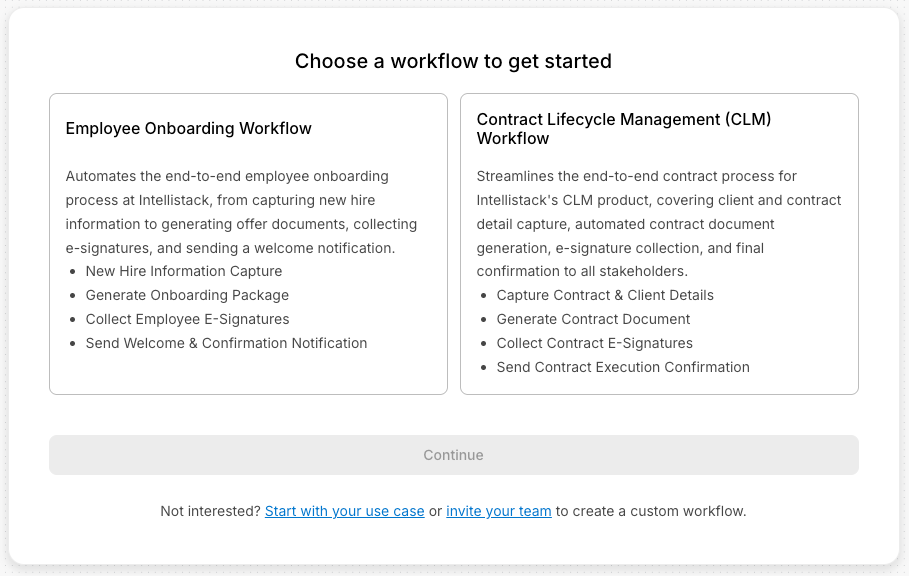
When profiling completes, you're presented with two AI-generated workflow recommendations based on what was learned about your organization. You can select one of the suggestions or describe your own use case to have Omni generate a workflow from your prompt. Either way, the result is a functional, ready-to-edit workflow with branded documents and notifications already configured. If you're focused on account setup rather than building, you can invite teammates to the organization so the right person can pick up the workflow and run it.
What gets generated
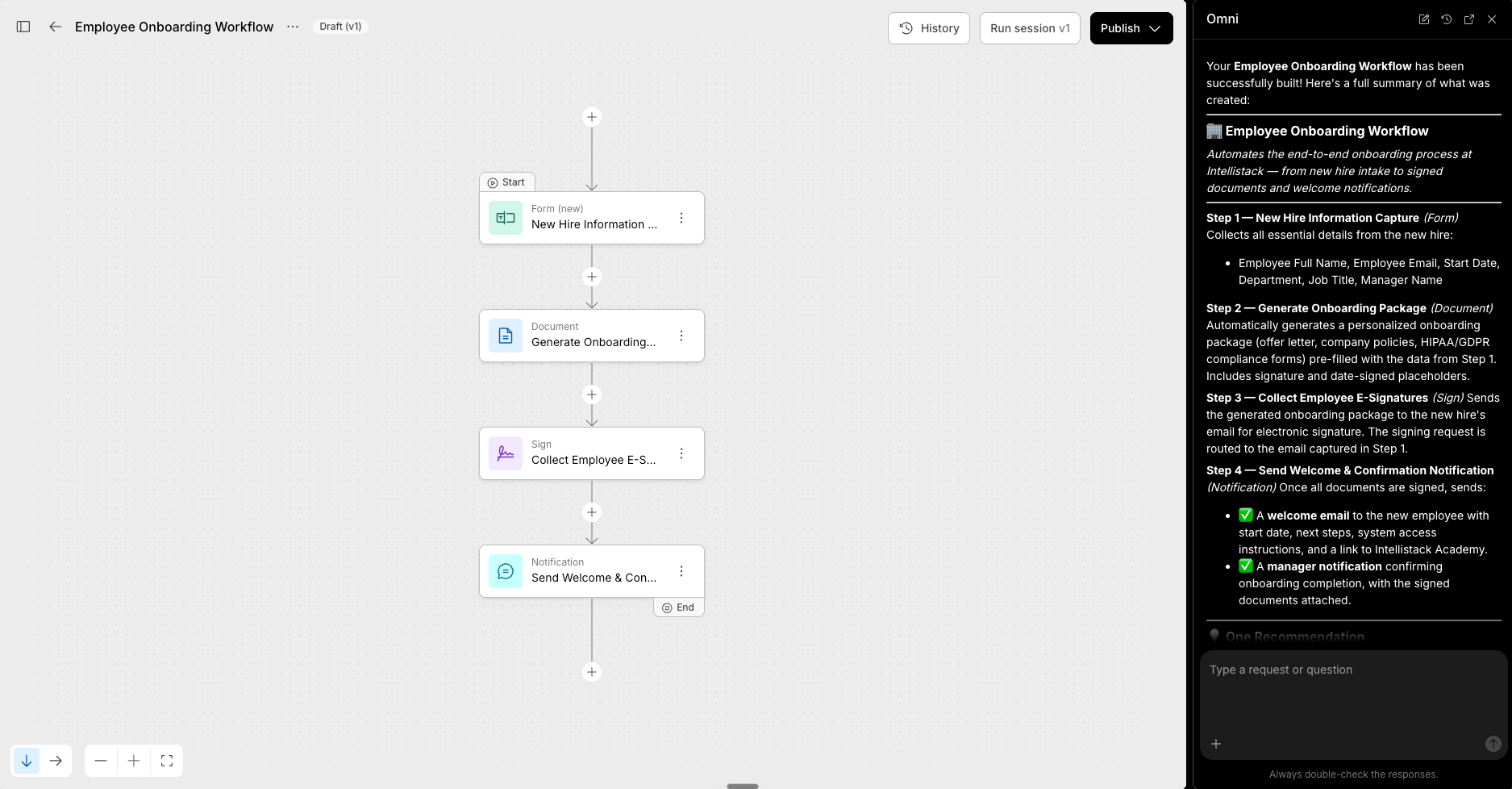
Generated workflows are built from four step types:
- Data Collection - a form or intake step to capture submissions
- Documents - branded document generation populated from submission data
- Signature - e-signature routing where the use case calls for it
- Notification - email notifications to the right people at the right point
Branding is applied automatically to generated documents and notifications. If the profiling service found your primary logo, logomark, and primary color, those are applied to the output from day one.
The generated workflow is a starting point. You can edit it, extend it, or hand it to a teammate to run as-is.
Managing your organization profile
All admins can view and edit the organizational profile through the Org Profile Manager. If the initial inference got something wrong - incorrect industry classification, missing logo, wrong primary color - you can update any field directly.
Changes are logged with the admin name, previous value, and new value. All admins receive a notification when the profile is updated, keeping everyone aligned on what the organization data says.
Example workflows
- Healthcare: A medical practice receives a patient intake workflow with a data collection form, branded consent document, e-signature step, and staff notification on submission.
- Professional services: A consulting firm sees a client onboarding workflow with intake, a branded engagement document, signature routing, and a confirmation notification.
- Logistics: An operations team gets a driver incident report workflow with a mobile-friendly form, branded report document, and notification to the ops manager.
- HR: An HR team receives an employee onboarding workflow with a new hire intake form, offer letter, e-signature step, and notification to HR on completion.
Requirements and limitations
- Work email required - Free email providers (Gmail, Yahoo, and similar) are not supported. Profiling uses your company domain to identify your organization.
- Step types - Generated workflows include Data Collection, Documents, Signature, and Notification steps only. Integration steps, logic/conditional steps, collaboration steps, and data source steps are not included.
- Custom use cases - In addition to the two AI-generated suggestions, you can describe your own use case to have Omni generate a workflow from your prompt.
- Profiling runs once - After the initial profile is built, subsequent updates must be made manually through the Org Profile Manager.
Available now
The First User Experience runs automatically for the first user provisioned into any new Streamline organization. It does not run for additional users added to an existing organization. All admins can access the Org Profile Manager in Settings to view or update their organization's profile.
To view, edit, or manually trigger profiling for your organization, see Managing Your Organization Profile. For details on how branding is applied across Streamline, see Branding in Intellistack Streamline.
.jpg)